Salad logoSalad logo
Quickstart
How to Find Your GPU or CPU SpecificationsHow to Enable Compute Mode on AMD DriversHow to Update your Nvidia DriversHow to Update your AMD DriversHow to Reinstall your GPU Drivers.How to Create a HAR FileHow to Create a Support TicketHow to Check if your Salad Installer is SafeHow to enable Virtualization Support on your machineEnable Virtualization on HP PCsIdentifying Your CPUEnable Virtualization on Lenovo PCsEnable Virtualization on Acer PCsEnable Virtualization on Asus PCsEnable Virtualization on Dell PCsEnable Virtualization by Motherboard: MSI (American Megatrends)Identifying your MotherboardEnable Virtualization by Motherboard: GigabyteHow to Update the WSL Kernel on your PCHow to Save Network Requests (HAR File)How to Improve Internet Speed for Container JobsHow to Disable ECCHow to Update your Intel Drivers
Discord
GuidesYour PC

How to Find Your GPU or CPU Specifications

You can find your GPU or CPU model plus additional specifications (such as VRAM) from either your Task Manager or via the Salad Widget. Here are instructions for both methods.


How to Check Your GPU and/or CPU Via Task Manager

  1. Either right click your Windows Taskbar or search "task manager" to locate Task Manager.
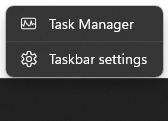
    Buttons to open Task Manger

  2. Click and open Task Manager, then navigate to the performance tab
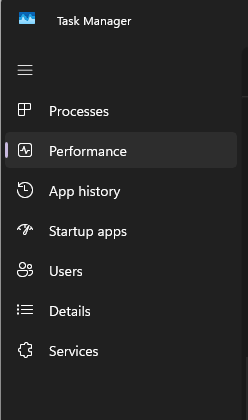
    performance tab of task manager

  3. Find the GPU and/or CPU you would like to inspect and click it for more information
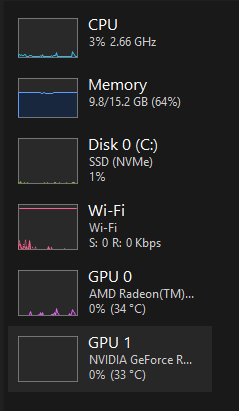
    screenshot of performance tab in task manager

  4. You should see all relevant device information displayed prominently within the Task Manager window, including VRAM, device usage, driver version, temperature, and more. See below:
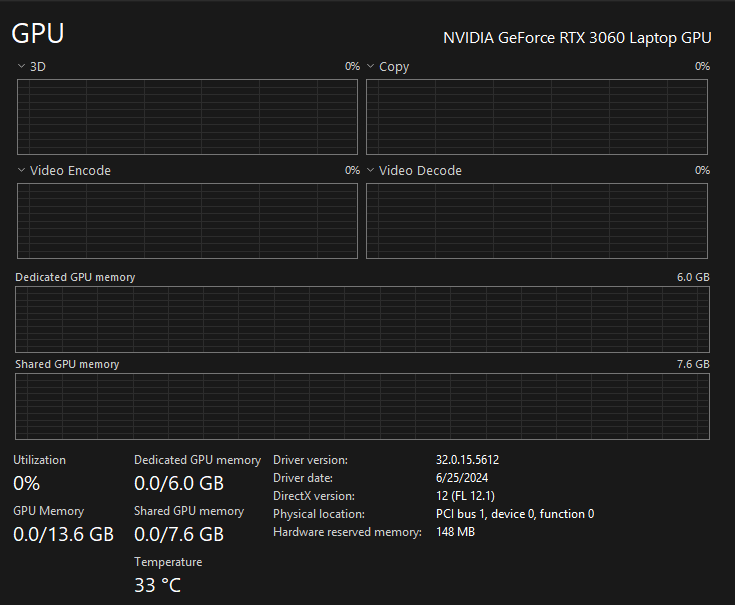
    Screenshot of GPU tab in task manager


How to Check Your GPU and/or CPU Via the Salad Widget:

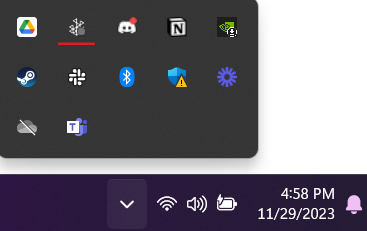
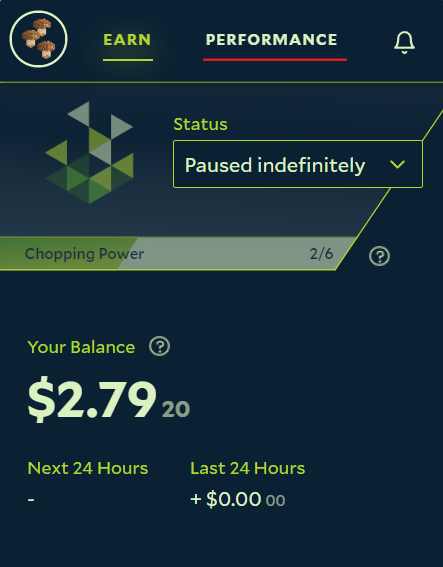
  1. Open the Salad widget

    opening the Salad app

  2. Navigate to the "PERFORMANCE" tab

    Performance tab in the Salad app

  3. GPUs will appear with this icon next to them
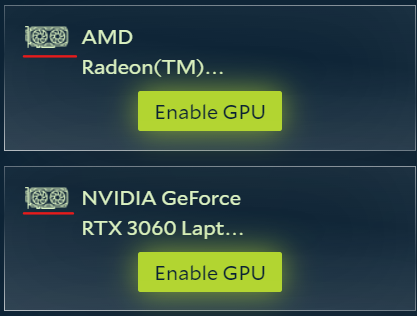
    example of GPUs in the Performance tab

  4. CPUs will appear with this icon next to them
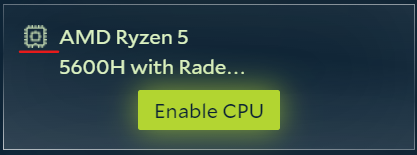
    example of CPUs in the performance tab

If you are unable to find your CPU or GPU shown here, make sure you are updated to the latest version of the Salad application and try again. You can download the latest version of the Salad application direct from the download website. If this still doesn't work, please contact Salad Support.

Edit on GitHub

Last updated on

How to View your Salad Achievements

Previous Page

How to Enable Compute Mode on AMD Drivers

Next Page

On this page

How to Check Your GPU and/or CPU Via Task ManagerHow to Check Your GPU and/or CPU Via the Salad Widget: