

Salad logoSalad logo
Quickstart
How to Find Your GPU or CPU SpecificationsHow to Enable Compute Mode on AMD DriversHow to Update your Nvidia DriversHow to Update your AMD DriversHow to Reinstall your GPU Drivers.How to Create a HAR FileHow to Create a Support TicketHow to Check if your Salad Installer is SafeHow to enable Virtualization Support on your machineEnable Virtualization on HP PCsIdentifying Your CPUEnable Virtualization on Lenovo PCsEnable Virtualization on Acer PCsEnable Virtualization on Asus PCsEnable Virtualization on Dell PCsEnable Virtualization by Motherboard: MSI (American Megatrends)Identifying your MotherboardEnable Virtualization by Motherboard: GigabyteHow to Update the WSL Kernel on your PCHow to Save Network Requests (HAR File)How to Improve Internet Speed for Container JobsHow to Disable ECCHow to Update your Intel Drivers
Discord
GuidesYour PC

Identifying Your CPU

To determine what kind of CPU is installed on your machine, simply do the following:

  1. With your computer on, hit the Windows key to expand the Start menu.
  2. Type "About Your PC" to begin a search.
  3. Select the "About Your PC" System Settings menu.
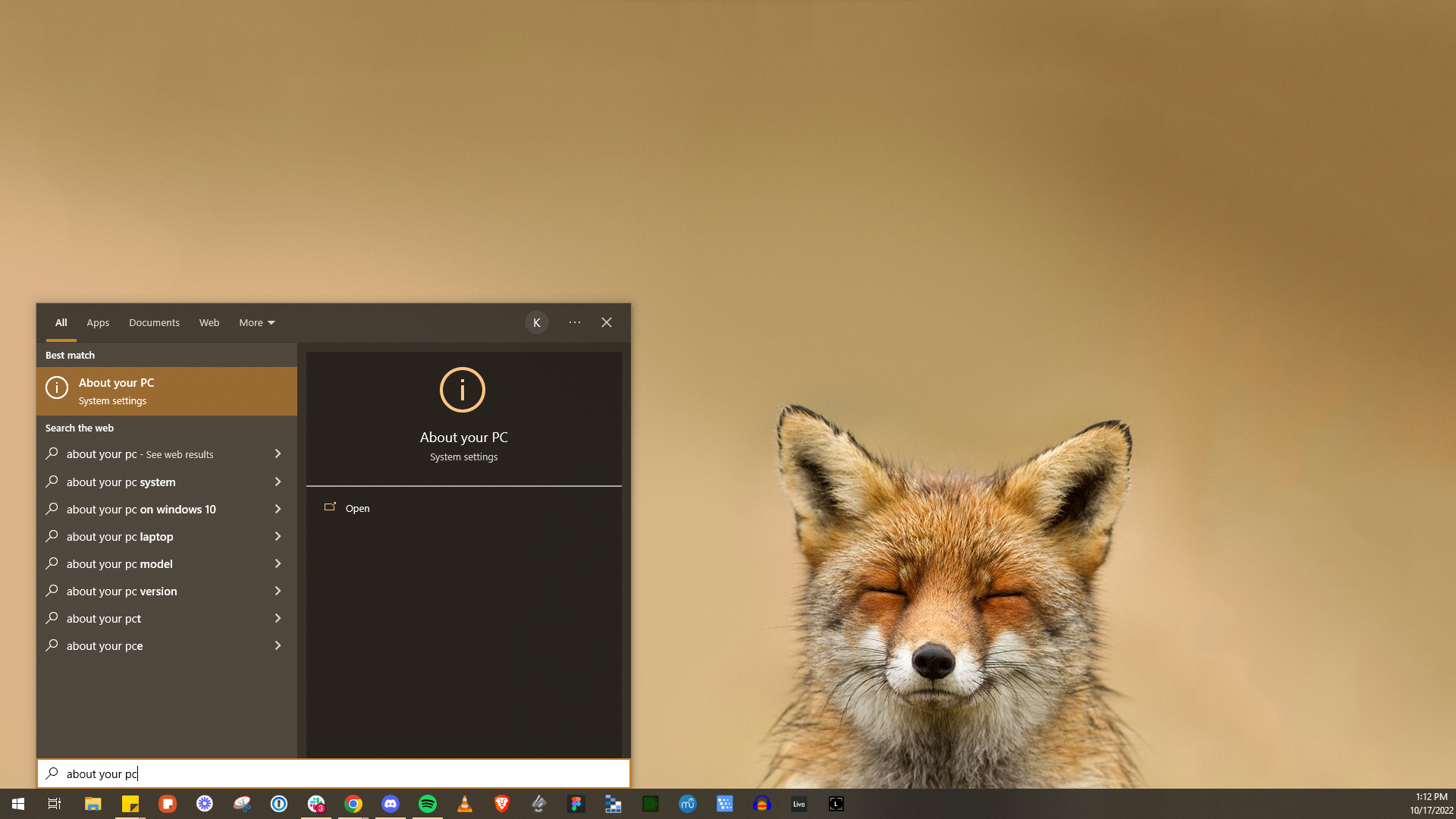
Screenshot of Windows Search opening About Your PC

4. You should see your processor listed under "Device Specifications" on the following screen.
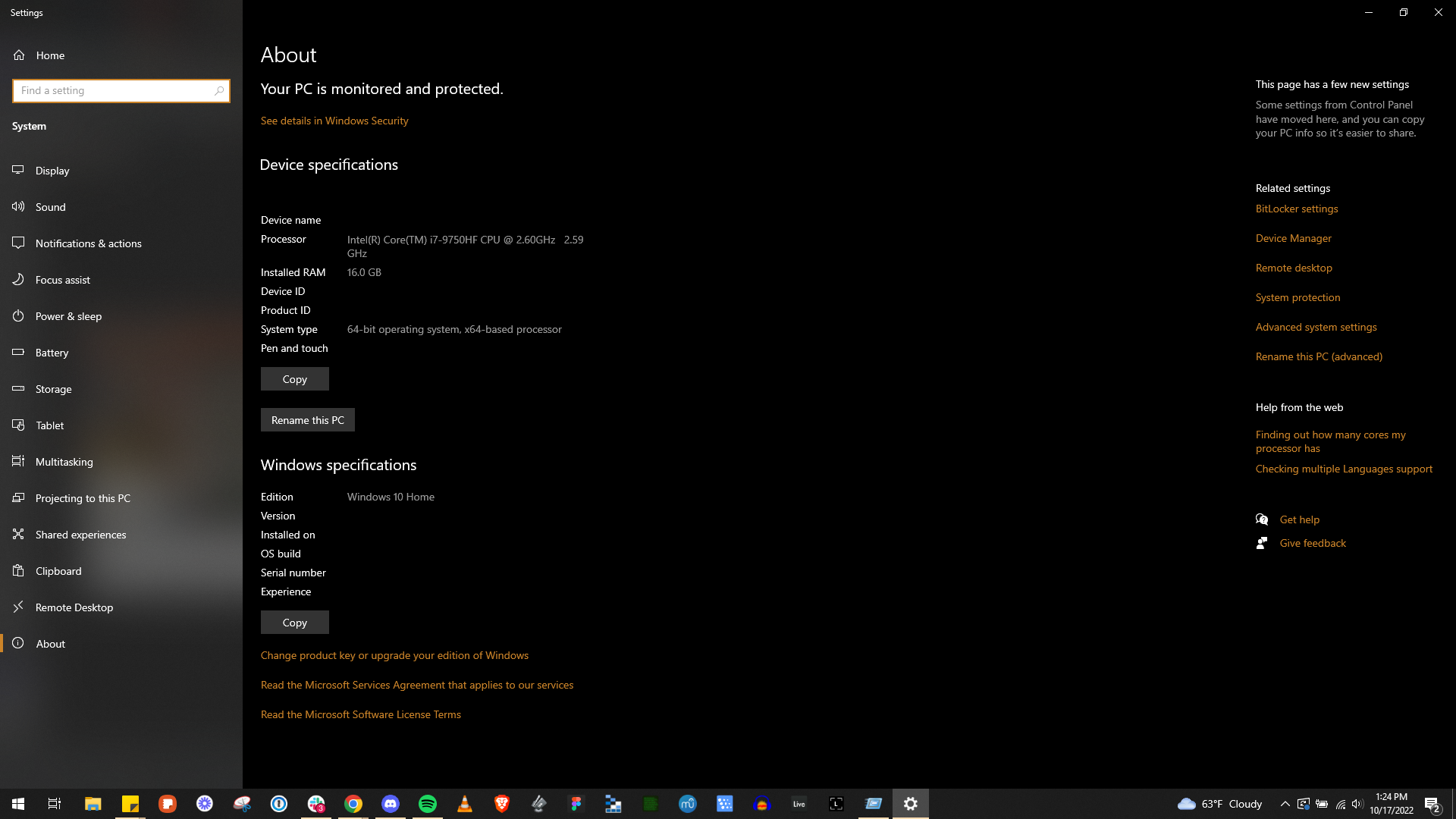
Screenshot of Windows Settings showing CPU

Edit on GitHub

Last updated on

Enable Virtualization on HP PCs

Previous Page

Enable Virtualization on Lenovo PCs

Next Page