

Enable Virtualization on Lenovo PCs
Many commercially available PCs allow users to manage their BIOS configuration directly from the startup screen. These step-by-step guides will help you access and adjust the BIOS settings on prebuilt PCs manufactured by Lenovo.
BIOS Setup Key
Depending on your Lenovo machine, the default BIOS setup key may be F1 or F2. Some systems require holding down the Fn key and repeatedly pressing the BIOS setup key up to ten times. You may need to try different key combinations to access BIOS settings on your machine.
Thinkpad (Intel Processor)
- Restart or boot your computer.
- Immediately press the BIOS setup key (above) to enter the BIOS Setup Utility.
- Using the arrow keys, navigate to the Security tab.
- Select Virtualization from the menu.
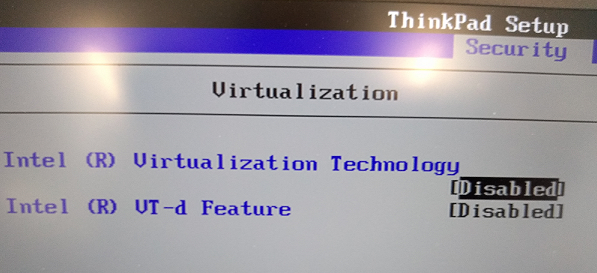
- Using the arrow keys, select Intel (R) Virtualization Technology from the menu.
- Enable this feature with the left or right arrow key.
- Press F10 once more to save your configuration and exit.
AMD Thinkpad V Technology
-
Restart or boot your computer.
-
Immediately press the BIOS setup key (above) to enter the BIOS Setup Utility.
-
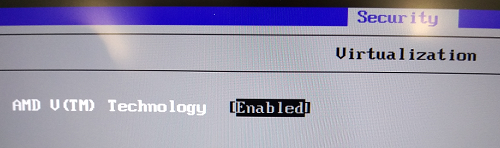
Using the arrow keys, navigate to the Security tab.
-
Select Virtualization from the menu.
-
Enable AMD V(TM) Technology with the left or right arrow key.
-
Press F10 once more to save your configuration and exit.
Ideapad (Intel Processor)
-
Restart or boot your computer.
-
Immediately press the BIOS setup key (above) to enter the BIOS Setup Utility.
-
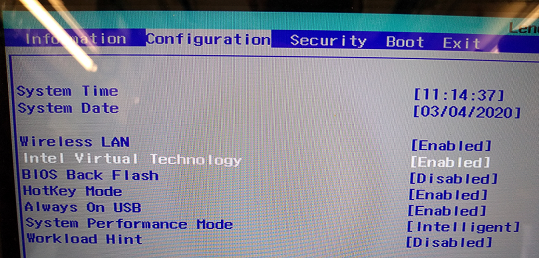
Using the arrow keys, navigate to the Configuration tab.
-
Select Intel Virtual Technology from the menu.
-
Enable this setting with the left or right arrow key.
-
Press F10 once more to save your configuration and exit.
ThinkCentre (Intel Processor)
-
Restart or boot your computer.
-
Immediately press the BIOS setup key (above) to enter the BIOS Setup Utility.
-
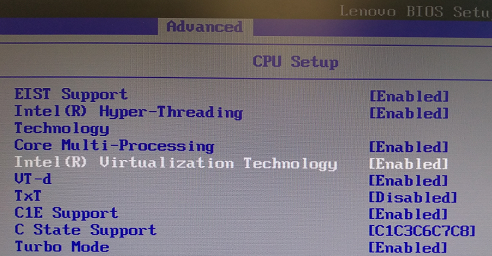
Using the arrow keys, navigate to the Advanced tab.
-
Select CPU Setup from the menu.
-
Using the arrow keys, select Intel (R) Virtualization Technology from the menu.
-
Enable this setting with the left or right arrow key.
-
Press F10 once more to save your configuration and exit.
Last updated on