

How to Create a HAR File
If you have contacted Salad Support regarding an issue or bug with the application, we may ask for a HAR file. This file contains a log of the network exchanges between your Salad app, and the servers and web-app. We can use this to investigate what caused your issue.
This file will contain personal identifying information, do not share this file to anyone except Official Salad Support.
To generate this HAR file, you'll need to follow these steps.
1. Open the Salad Web App
First, you'll need to navigate to the Salad web app. You can do this via your Salad widget in the settings menu, or navigate to https://salad.com/account/summary.
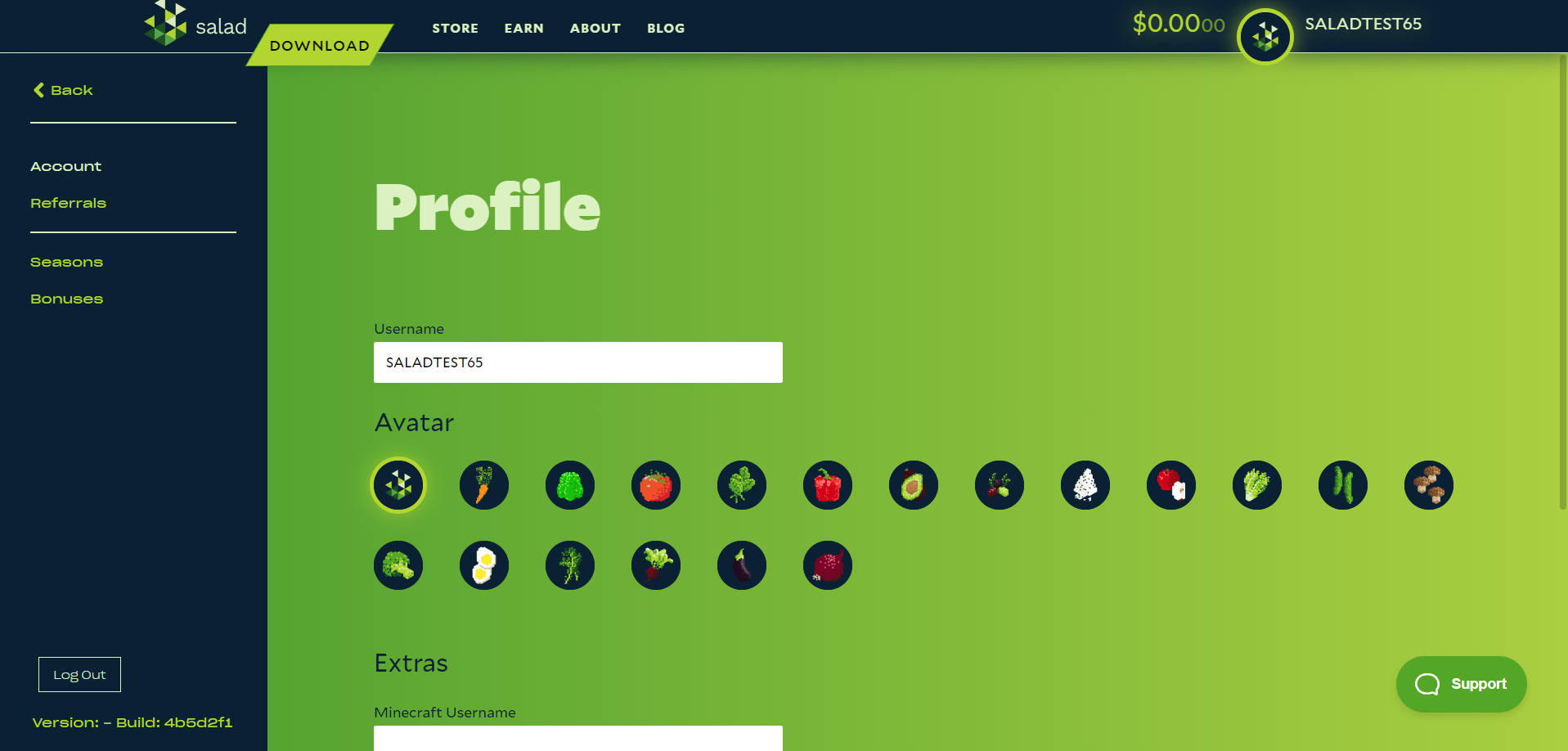
2. Hit the F12 key
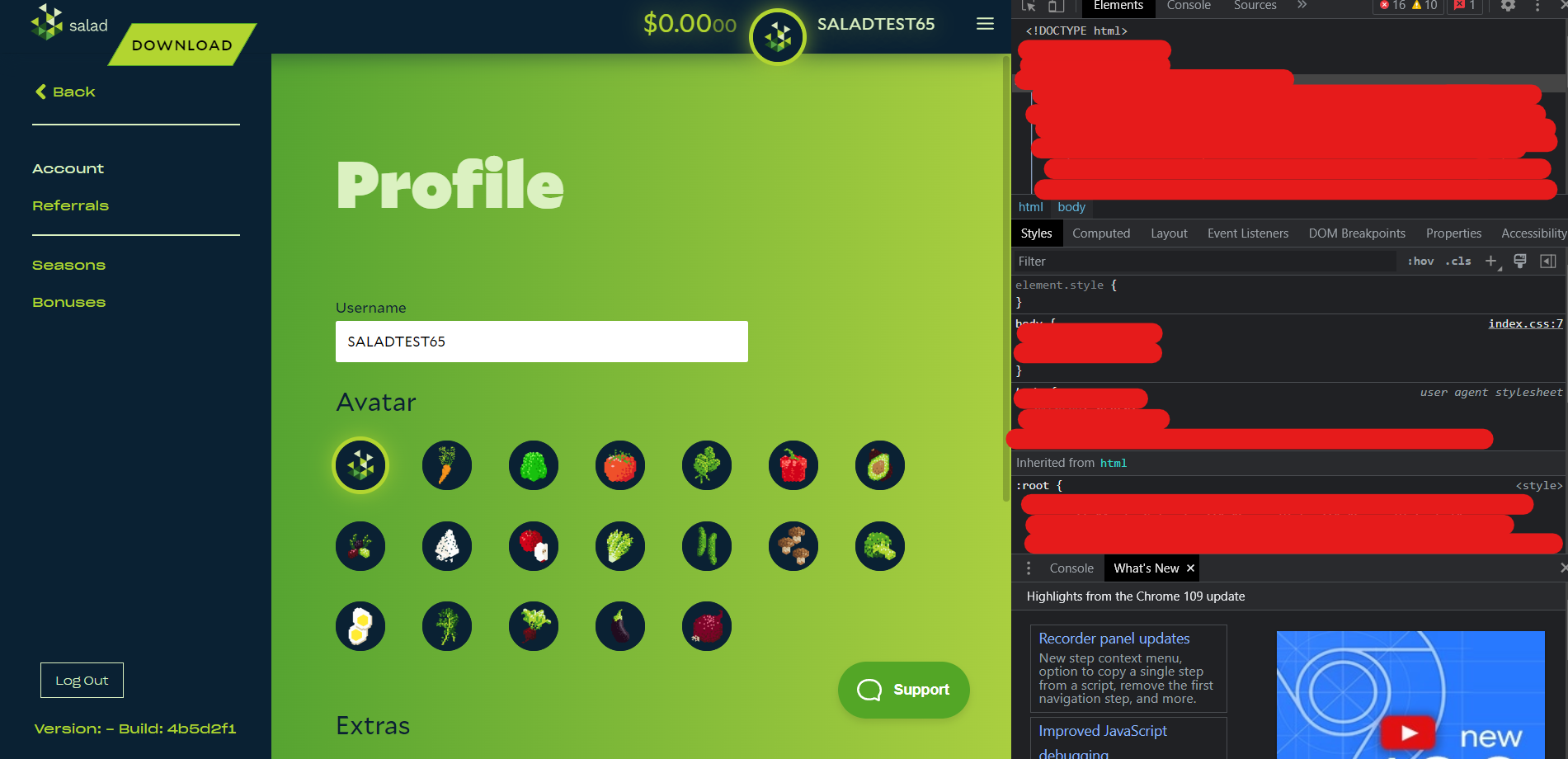
Click the F12 key on your keyboard to open up the Developer Console, this is the same console found in your web browser. It should look something like this.
3. Navigate to the Network tab
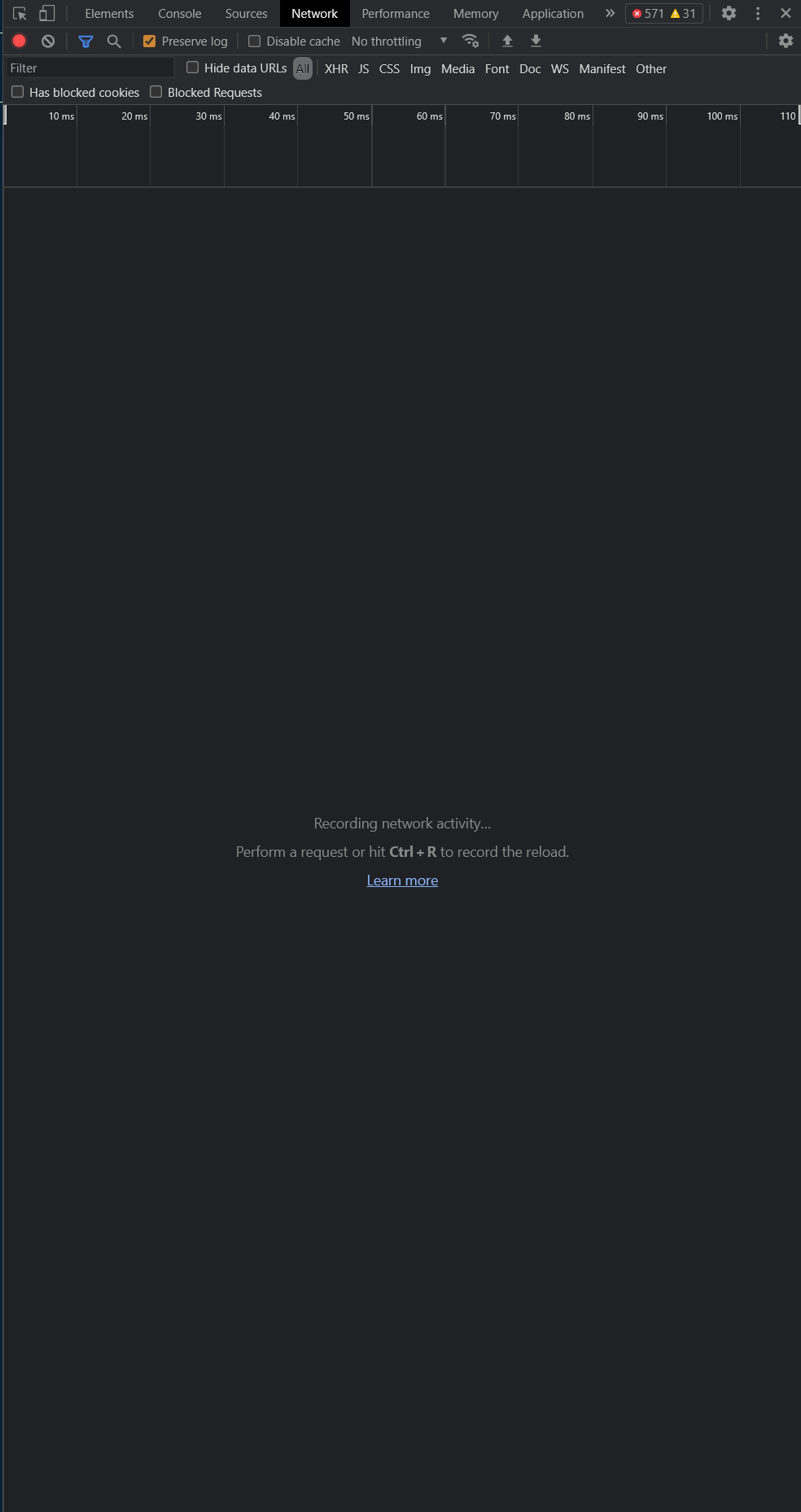
At the top of the Developer Console, select the "Network" tab. It should look like this.
4. Enable logging
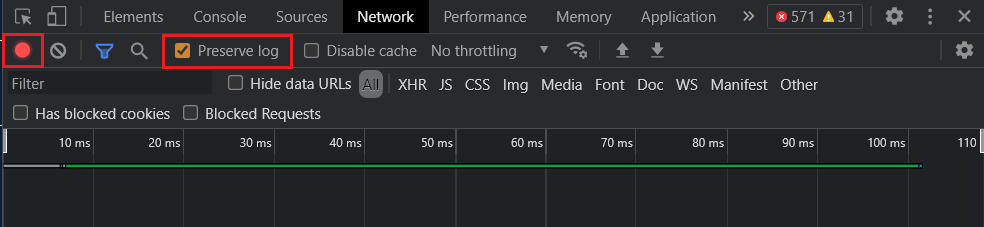
To ensure your logs are created, ensure that the little circle at the top left is red, and the "Preserve log" checkbox is ticked, like here.
5. Reproduce your issue
Now that the logs are recording, clear the existing logs by clicking the button next to the red recording icon, and then reproduce the issue you are experiencing. If your problem happens automatically, simply wait until it starts happening.
6. Save the log file
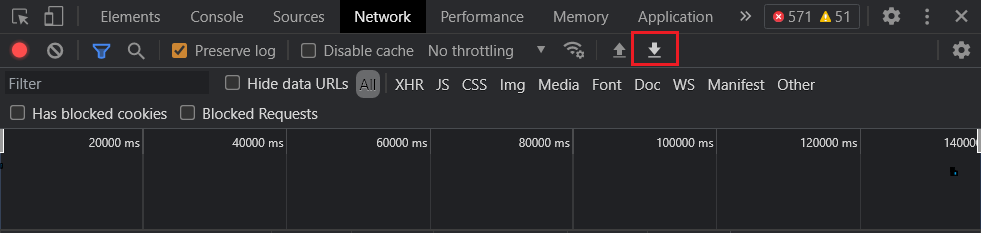
Once you have reproduced the issue, click the "Export HAR" button on the right, and save it to your system.
7. Upload your log file
Once you have the log file on your system, upload and attach it to your Support Ticket.
Last updated on