

Salad logoSalad logo
Quickstart
How to Enable or Disable Auto LaunchHow to Make a PurchaseWhere to Find Your Reward Redemption CodeHow to See your Earnings HistoryHow to Uninstall SaladHow to Use the Earnings SummarySalad's Running StatesHow to Register and Log Into SaladHow to Log Out of the Salad Web AppHow to Edit Your ProfileHow to Claim a BonusHow to Update SaladHow To Find Your Salad Log FilesHow Estimated Earnings WorkWhere to Find your Salad LogsHow to Manually Start SaladUsing the Notifications PageHow to Enable and Disable HardwareHow to Disable Sleep ModeHow to Enable Elevated PermissionsChopping PowerBecoming a Star Chef: Qualifications and BenefitsSalad App SettingsHow to Find your Salad Machine IDSalad App PasskeysWhat is the Activity Indicator?How to Enable Auto-StartHow to Set Up a Demand AlertHow to View your Salad Achievements
Discord
GuidesUsing Salad

How to Enable Elevated Permissions

Enabling Elevated Permissions in your Salad app allows us to run some jobs as "Admin". Enabling this setting may allow us to run certain jobs with increased earnings. You can learn more here.

  1. Open your Salad Widget.

    Opening the Salad app

  2. Click your Profile Picture at the top left.

    Selecting your profile in the Salad app

  3. Click the "Settings" button.

    Opening settings in the Salad app

  4. Scroll down, and open "Workload Preferences".
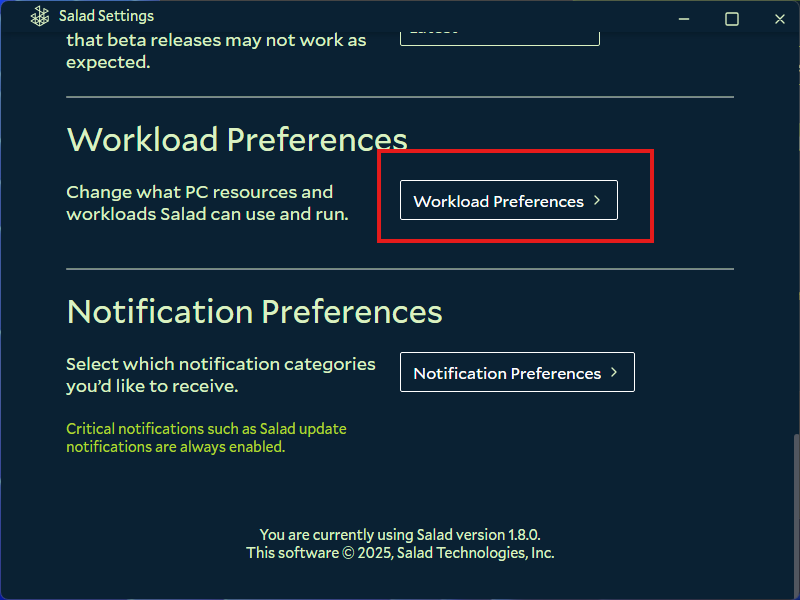
    Finding the workload preferences options in the Salad app

  5. Scroll down slightly, and enable "Allow Elevated Permissions".

Edit on GitHub

Last updated on

How to Disable Sleep Mode

Previous Page

Chopping Power

Next Page