

Salad App Passkeys
As the Salad network expands into more profitable jobs, we've introduced Passkeys to enhance the security of Chef accounts. Passkeys work differently from passwords or one-time authentication codes. Instead, they use authentication for your device, often biometrics or unlock pins. Chefs must manually add Passkeys within the Salad app.
To set up Passkeys, follow these steps:
-
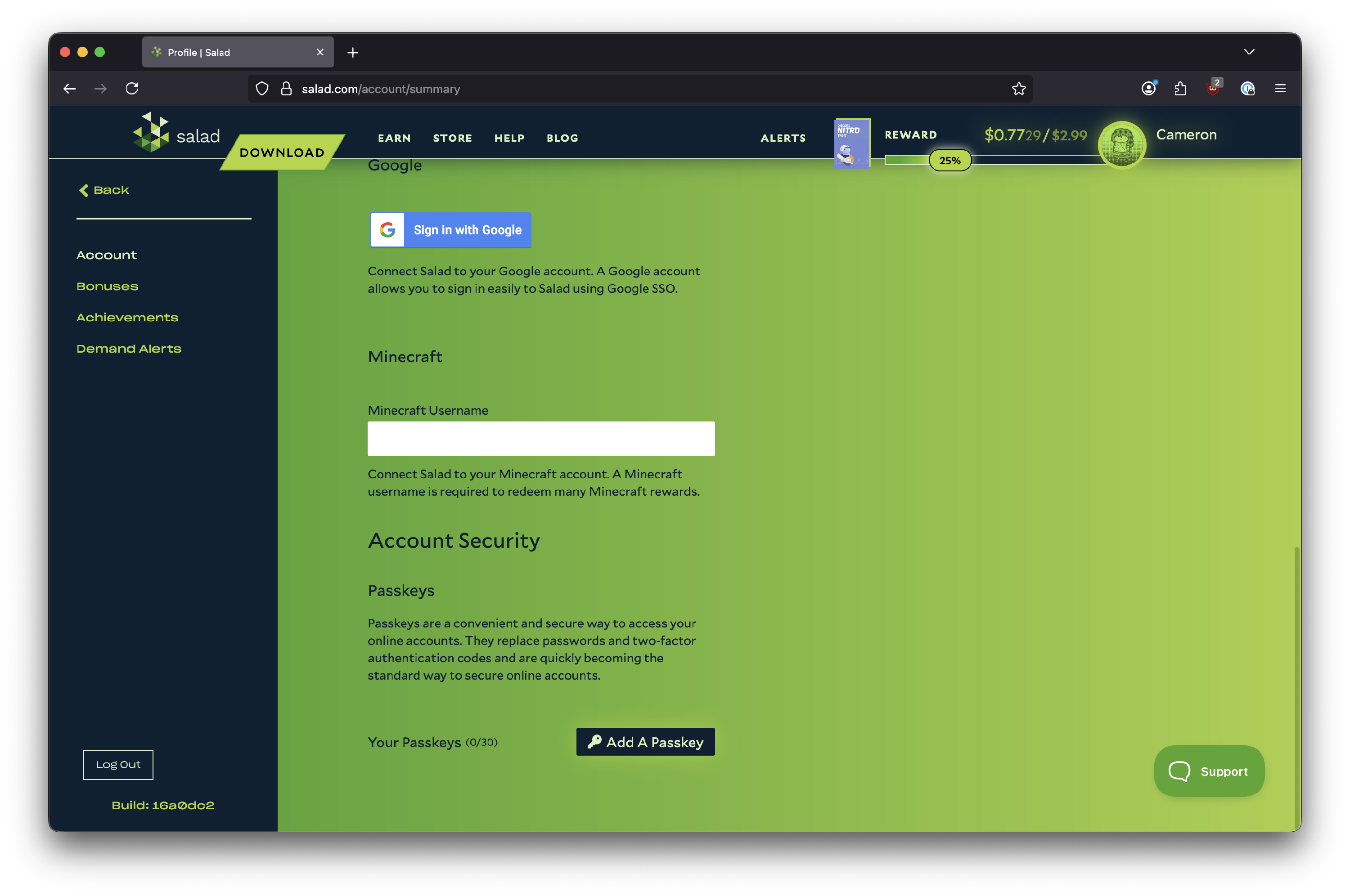
Navigate to the Salad web app and scroll down to the Account Security section.
-
Under Account Security, click on the Add a passkey option.
-
Complete the OTP challenge that appears.
-
If successful, you'll see that a Passkey has been added for your browser.
Once a passkey is set up, it cannot be edited, removed, or bypassed by our team. The only solution to remove passkeys or acccess protected accounts once set up is through the passkey or the included backup codes.
Store your backup codes in a secure, accessible location - ideally using the 3-2-1 backup rule:
- Create 3 copies of the data
- Use 2 different storage devices
- Keep 1 of the backup copies off-site
In this instance, it is recommended to store the backup codes on your machine (on the hard drive), on a USB key or external hard drive, and one in the cloud or other machine you own.
You can read more about Passkeys here.
Last updated on