

GuidesUsing Salad
How To Find Your Salad Log Files
When troubleshooting with a support representative, you'll often be asked to provide your log files so we can get more insight into your particular issue.
Get your Salad Logs from the Salad App
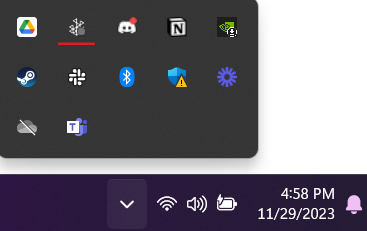
- Open the Salad
application
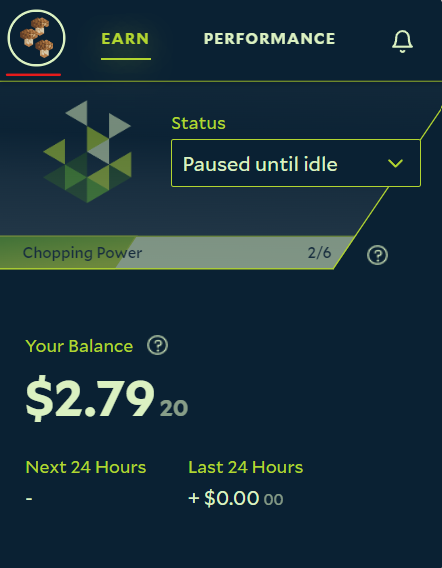
- Click the menu at the top left
page
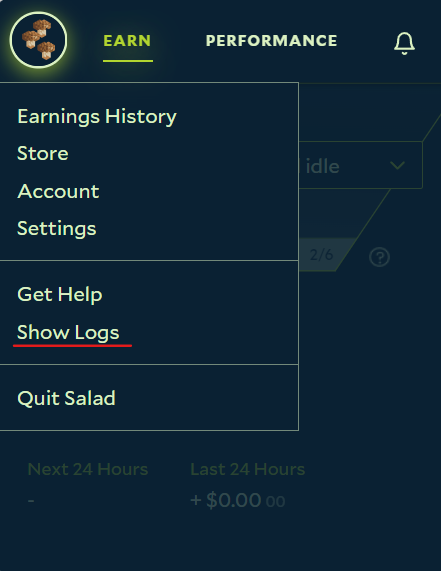
- Scroll down and click the "Show Logs"
button.
- A file explorer window will then open up showing your log files, which you can then drag and drop into your email to send to us, or into the "add attachment" window when creating your ticket, or chat.
If you are unable to follow these steps, or something doesn't work, you can manually navigate to the log folders using the guides below.
Manually Find your Salad Logs
- Browse your computer's directory with the "search programs and files" bar or "File Explorer"
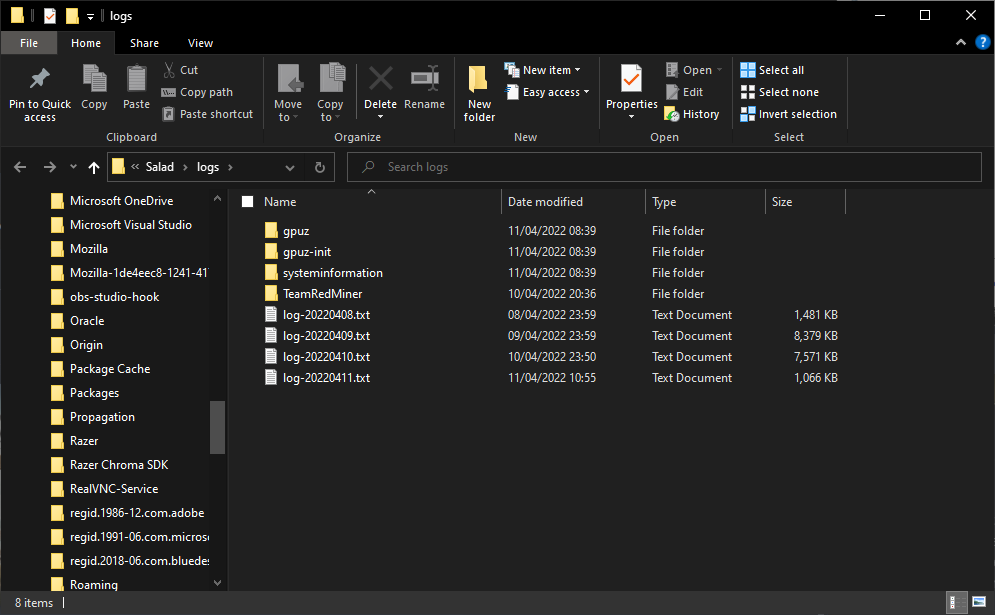
2. Locate "C:\Users\<username>\AppData\Roaming\Salad\logs\main.log"
Make sure you replace <username> with your own username on your computer. You should find your Salad log files there.
Edit on GitHub
Last updated on