

Where to Find your Salad Logs
Finding your Salad log files:
-
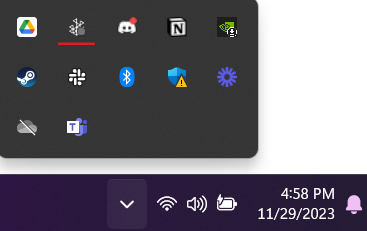
Open your Salad widget by clicking the Salad icon in your system tray
-
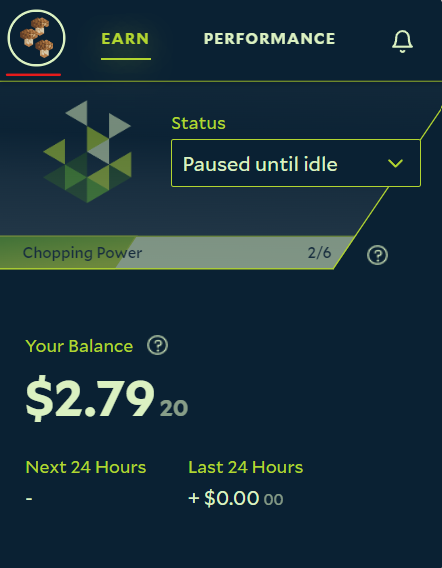
Click the menu at the top left
-
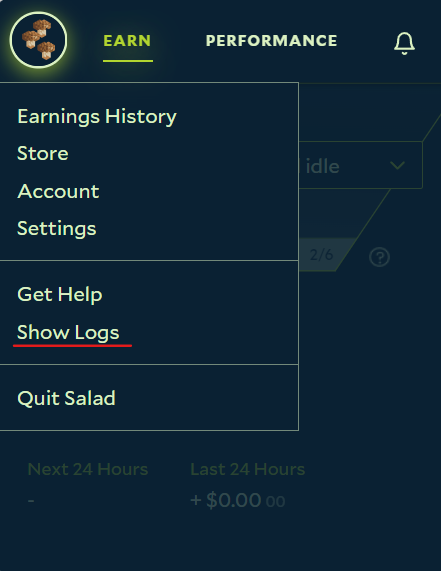
Click the "Show Logs" button
-
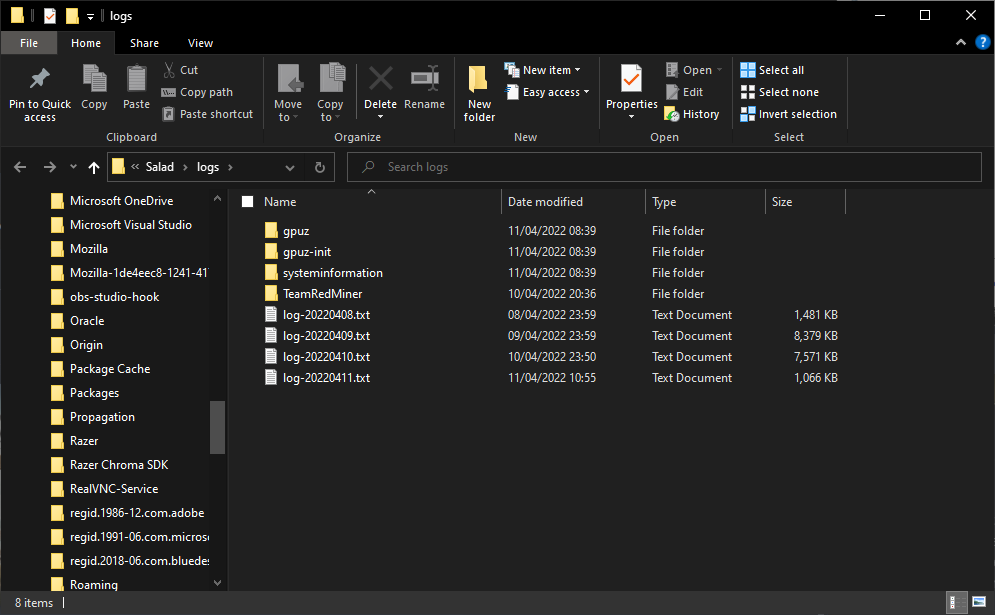
This opens up the Salad log directory, containing all of your Salad logs. Follow instructions from Salad Support if directed for which logs to upload
Understanding your log files:
\
The logs in the root of the Logs folder are the main SaladBowl logs. We persist these logs for 7 days. We may request these logs if you are experiencing a generic issue with the widget, or issues running the right jobs on your machine.
\gpuz
These log files track and record sensor data we receive in order to show GPU temperatures and usage in the widget. We persist these logs for 1 day. We may request these logs if you are not seeing your GPU usage or temperature within the widget.
\gpuz-init
These are the initialization logs for the above service, which logs what GPUs are installed in your machine, and information about your GPUs. We persist these logs for 1 day. We may request these logs if your GPU(s) is not appearing within the widget.
\systeminformation
These are the initialization logs to gather other system information like CPU model, and available system RAM. We persist these logs for 1 day. We may request these logs if your CPU(s) is not appearing within the widget.
\[job name]
Logs found in other folder names (such as T-rex, TeamRedMiner, XMRig) contain the miner logs. We persist these logs for 7 days. We may request these logs if you are having issues running jobs on your machine.
Last updated on