

Elevated permissions
What the Elevated Permissions setting does, whether you should enable it, and how to turn it on.
What are Elevated Permissions?
Enabling Elevated Permissions lets Salad run some Windows-native workloads as an administrator. Salad only uses the elevated rights when a workload needs them; everything else keeps running as normal.
Should I enable them?
No, for most Chefs. Elevated Permissions allow Salad to make some changes to driver configurations which may moderately improve earnings on crypto mining workloads. It does not affect your container earnings in most cases. If you run an older AMD GPU (RX 400 or RX 500 series) we would recommend enabling it, because those cards need compute mode and other driver tweaks to earn well.
What are the risks?
A workload running with administrator rights could, in rare cases, hit an unexpected bug with side effects such as taking longer to stop or continuing to run after Salad closes it. It also means third-party workloads run with admin privileges on your PC.
This is very unlikely, but if you prefer not to allow it you can leave the setting off. Depending on your hardware and how you run Salad, that may reduce your earnings - especially for crypto-mining reliant machines.
How to enable Elevated Permissions
-
Open the Salad app.

-
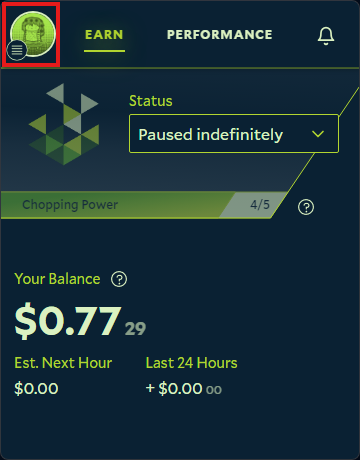
Click your profile picture in the top left corner.
-
Click Settings.

-
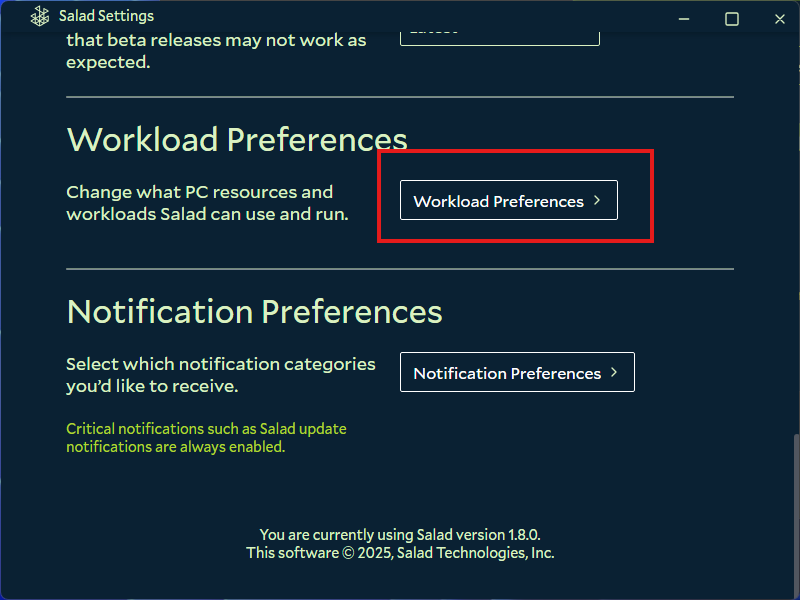
Scroll down and open Workload Preferences.
-
Scroll down slightly and turn on Allow Elevated Permissions. Windows may show a User Account Control prompt; accept it.
For the rest of the settings on this page, see Salad app settings.
Last updated on