

Earnings summary
How to open the earnings summary and read your total, per-machine and historical Salad Balance earnings.
The earnings summary shows how much you have earned in total, the current earning rate of each of your machines, and your earnings over time as a graph or a table. It also shows your total Chopping time and the number of rewards you have redeemed.
Earnings are credited to your Salad Balance while a job runs, not only when it finishes, so the summary keeps moving during a job. The numbers you see are based on the work your machine has reported; see How estimated earnings work for why they can differ from the rate the app displays.
Opening the earnings summary
-
Open the Salad app.

-
Click your profile picture in the top left corner.
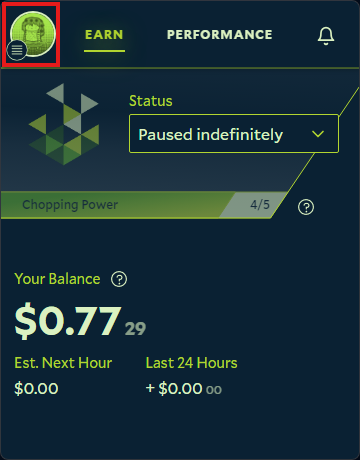
-
Click Earnings History.

-
The earnings summary opens in your web browser.
Earning rate per machine
Near the top of the page, the All Machines section lists every machine on your account with its current earning rate and when it was last seen. "Last seen" is the last time that machine earned any Salad Balance - it does not correspond to the last time your machine was online or Chopping.
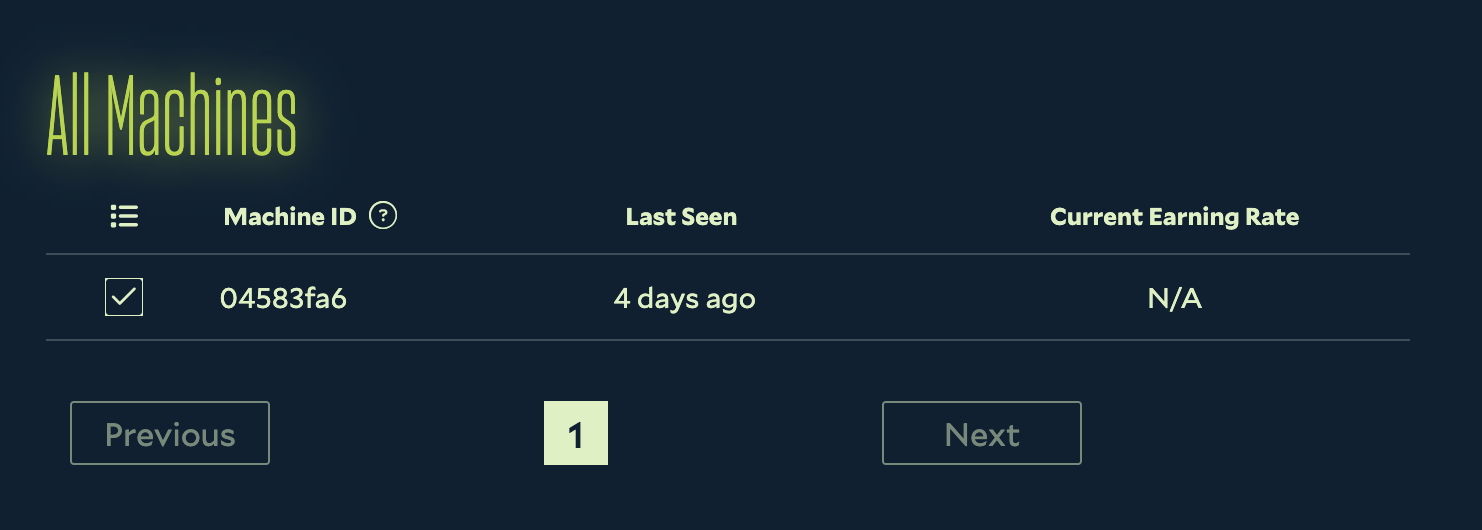
Machines are identified by their Machine ID; you can't name or rename them at this time.
Earnings history as a graph
Scroll down to Earning History and select the Graph tab.
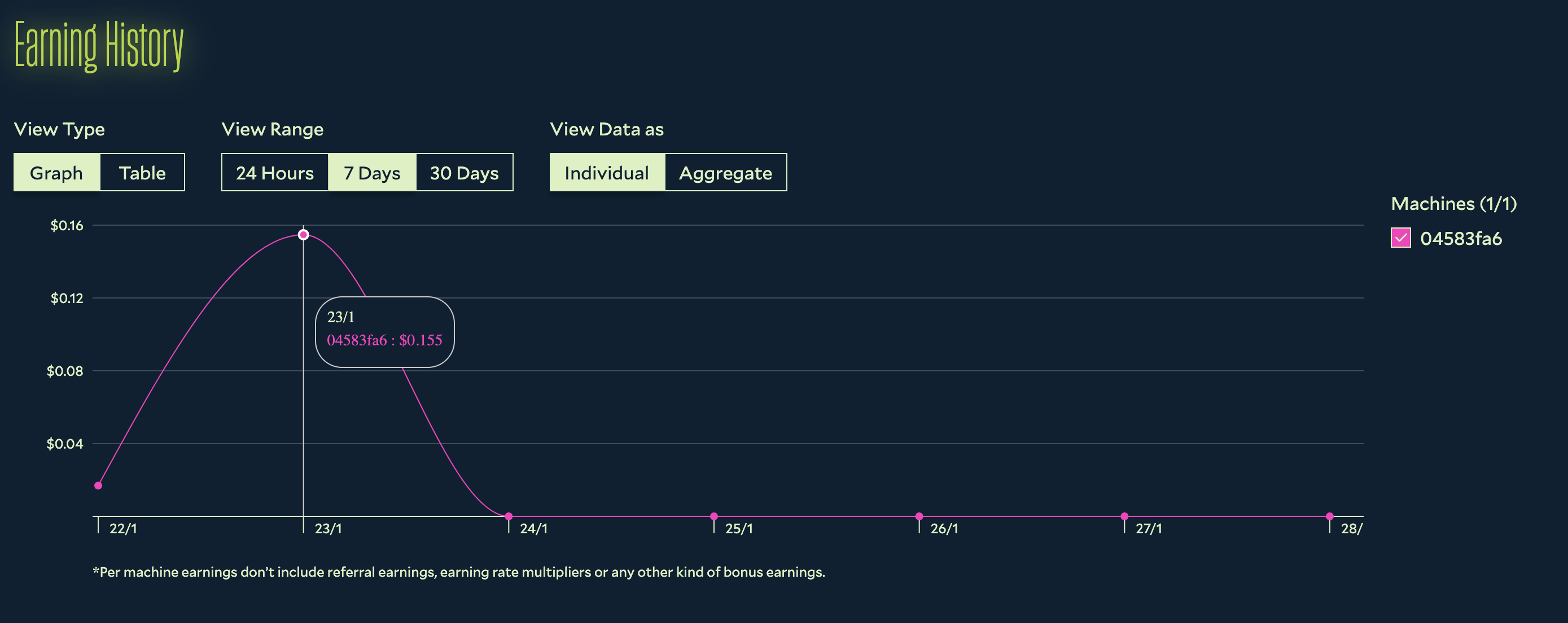
You can switch the timeframe between the last day, week and month, show earnings for the whole account or per machine, and hover over the graph to see the amount at a specific point in time.
Earnings history as a table
In the same section, select the Table tab.
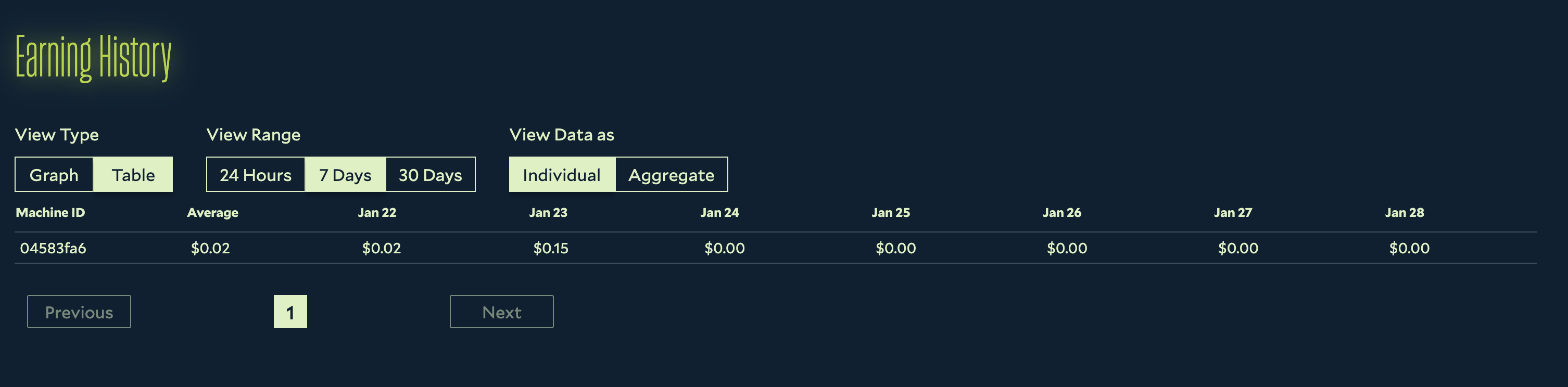
The table offers the same timeframes and the same account or per-machine views; click an entry to see the earnings for that period.
If a machine shows as running a job but its earnings are not moving, see Job running but no earnings.
Last updated on