

How to Whitelist Salad in Windows Defender
Even if you have disabled Windows Security/Defender, it may still be blocking Salad from getting your miners up and running, and you'll need to add a whitelist as well.
You can also view a video walkthrough here.
Whitelist Salad Using the Salad App:
-
Open your Salad Widget.
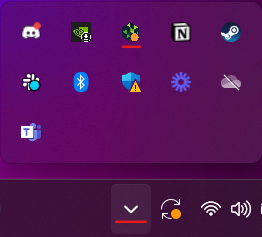
-
Click your Profile Picture at the top left.
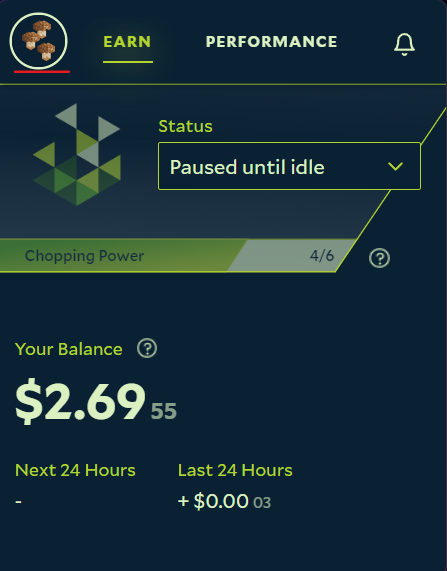
-
Click the "Settings" button.
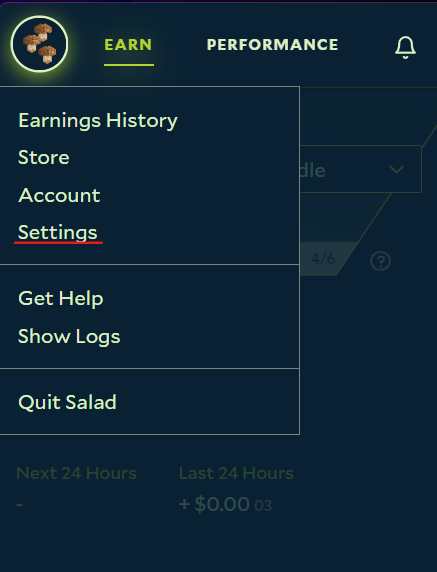
-
Click the "Whitelist Salad in Windows Defender" button at the top of the settings page.
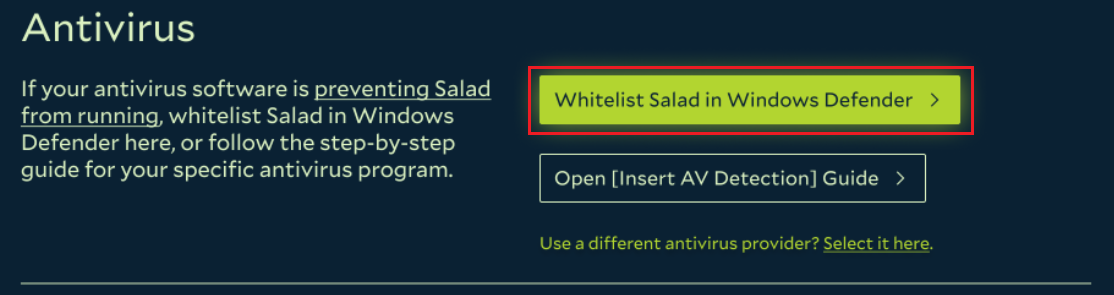
-
Click "yes" on the Windows UAC prompt to allow Salad to automatically whitelist itself in Windows Security/Defender.
-
Click the Start button in Salad again to start Chopping.
Manually Whitelisting Salad:
-
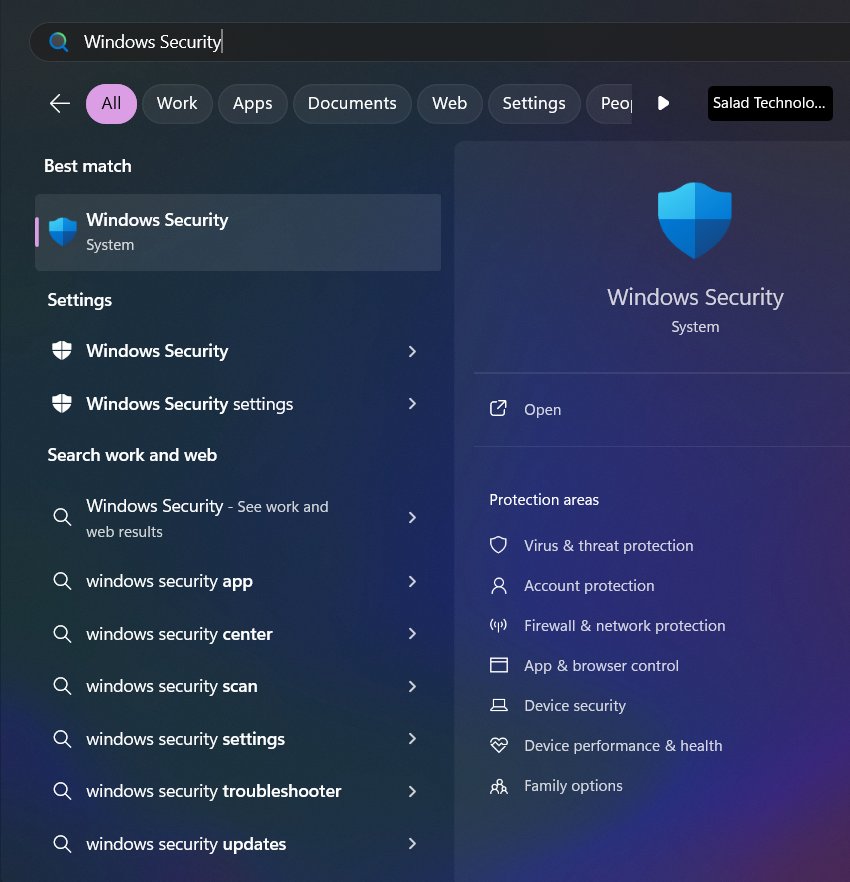
To find the Windows Defender settings, click on your Windows Icon and a search bar will appear. In that search bar, search "Windows Security" and select "Windows Security".
-
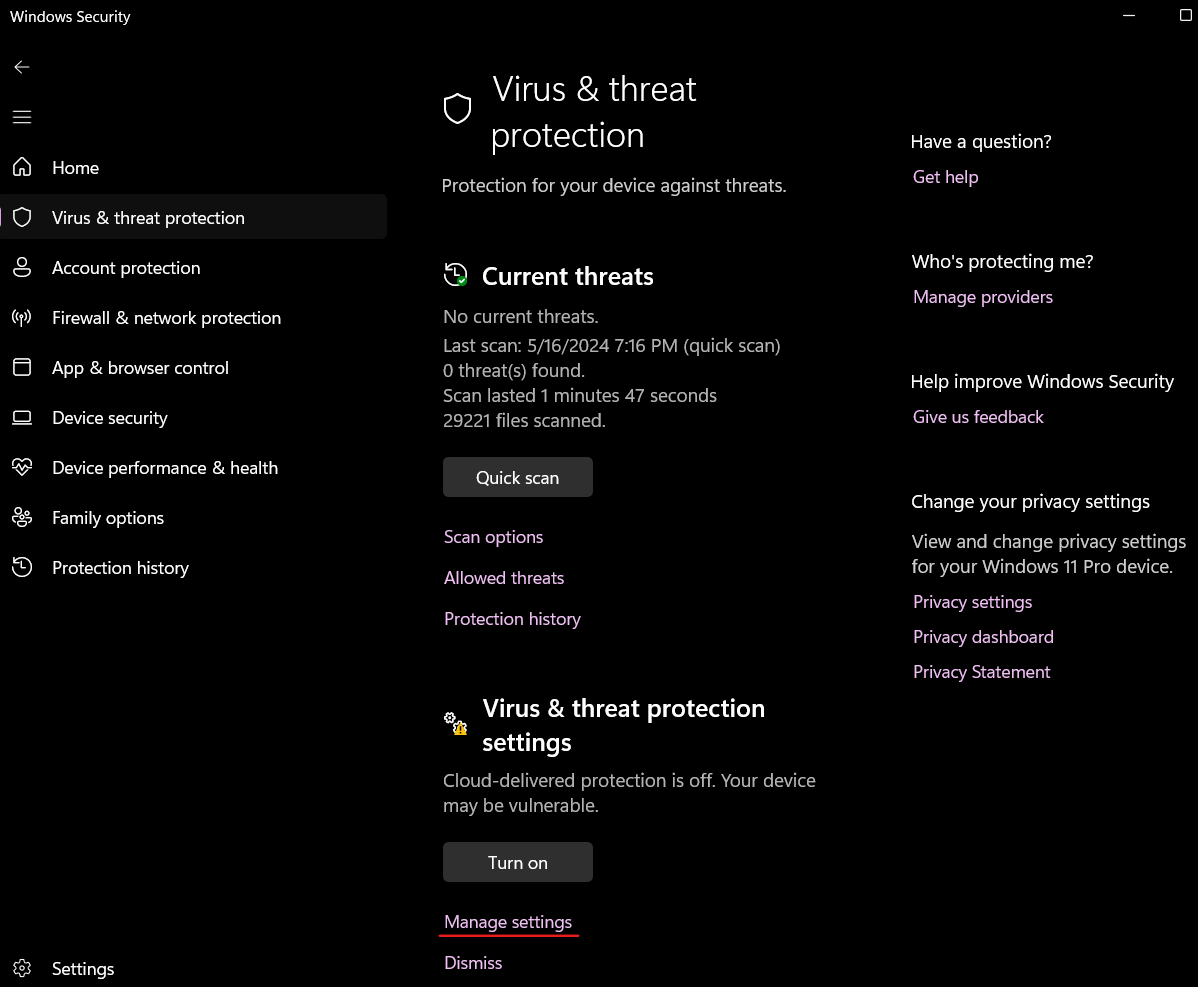
After opening Windows Security, you will shown the main dashboard for Windows Security. From here, select Virus & threat protection as selected in the screenshot below.
-
After you have clicked "Virus & threat protection" setting on the left of the main screen. You will now be shown more settings related to virus and threat protection on your computer. From there select "Manage settings" under Virus & threat protection settings as shown below.
-
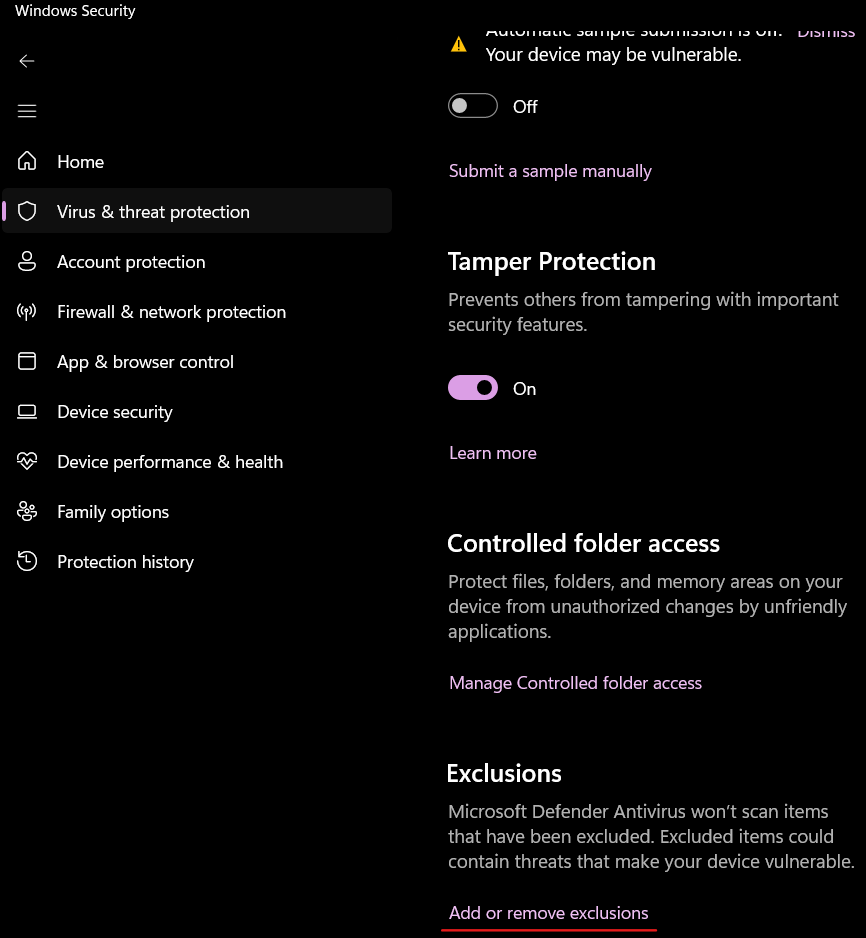
From this page, scroll down all the way to the bottom, and select "Add or remove exclusions", as shown below.
-
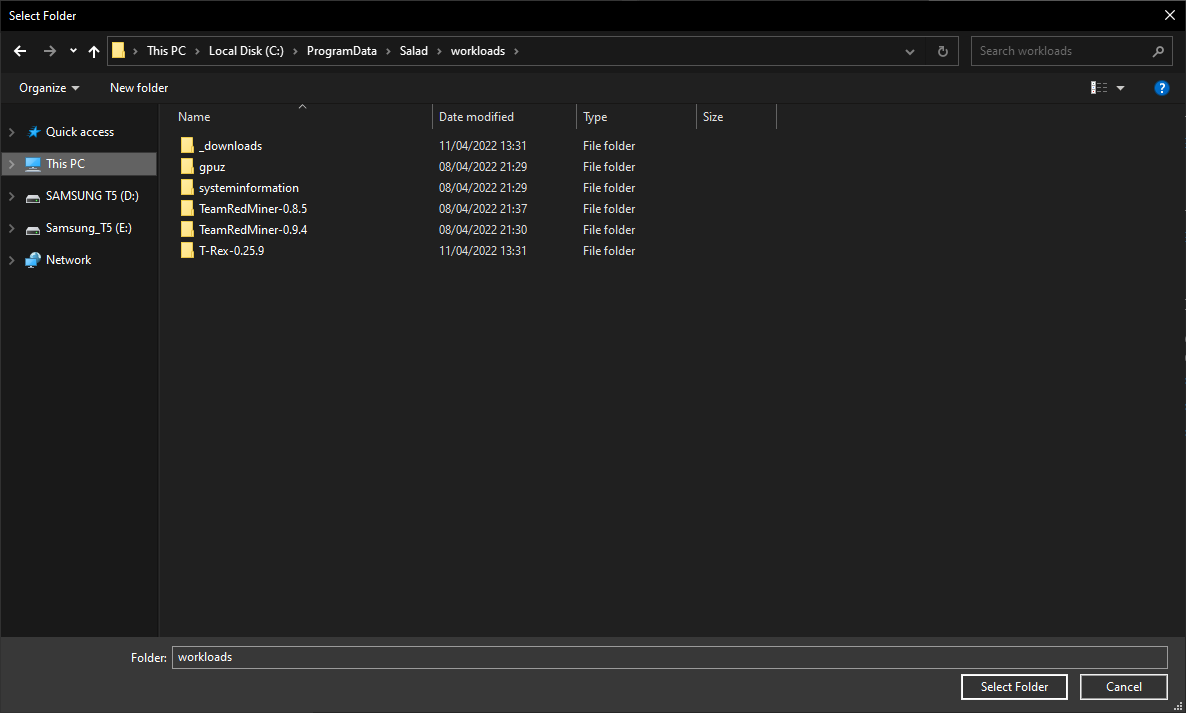
After you have clicked on 'Add or remove exclusions", select "Add an exclusion", then select "Folder", and navigate to the Salad folder by pasting "C:\ProgramData\Salad\workloads" into the bar at the top that shows your filepath, as shown below.
-
Click Select Folder, and Salad has now been whitelisted! Open your Salad widget again to start Chopping.
Last updated on