

How to Whitelist Salad in McAfee
1. Open McAfee
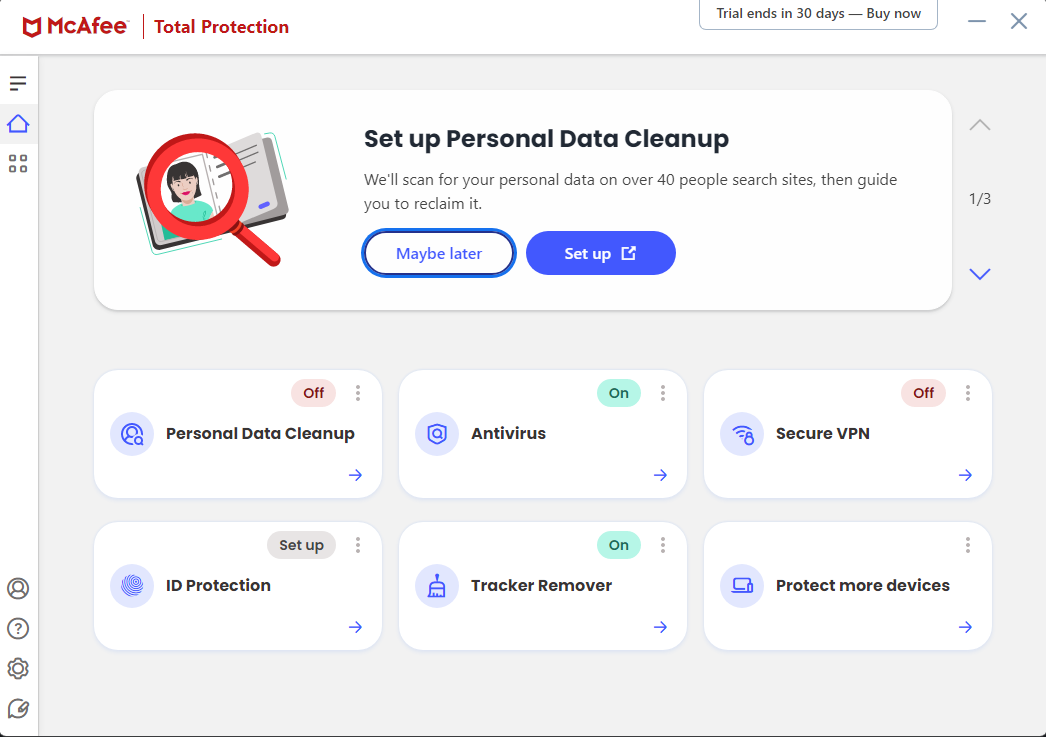
This is the main page for McAfee
2. Navigate to Real-Time Scanning
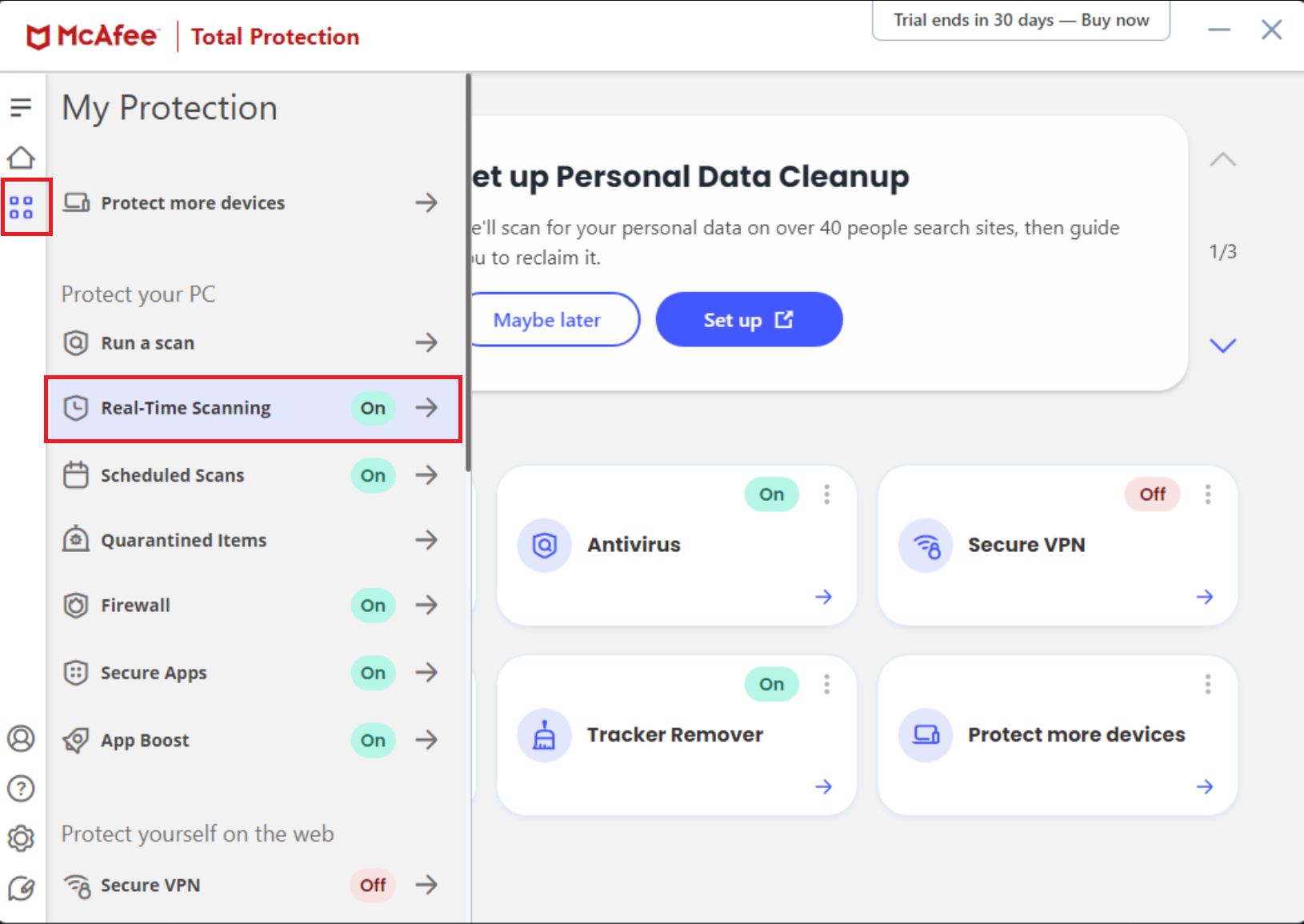
Click the 4 little squares on the left side, and select "Real-Time Scanning" from the opened menu.
3. Temporarily disable Real-Time Scanning
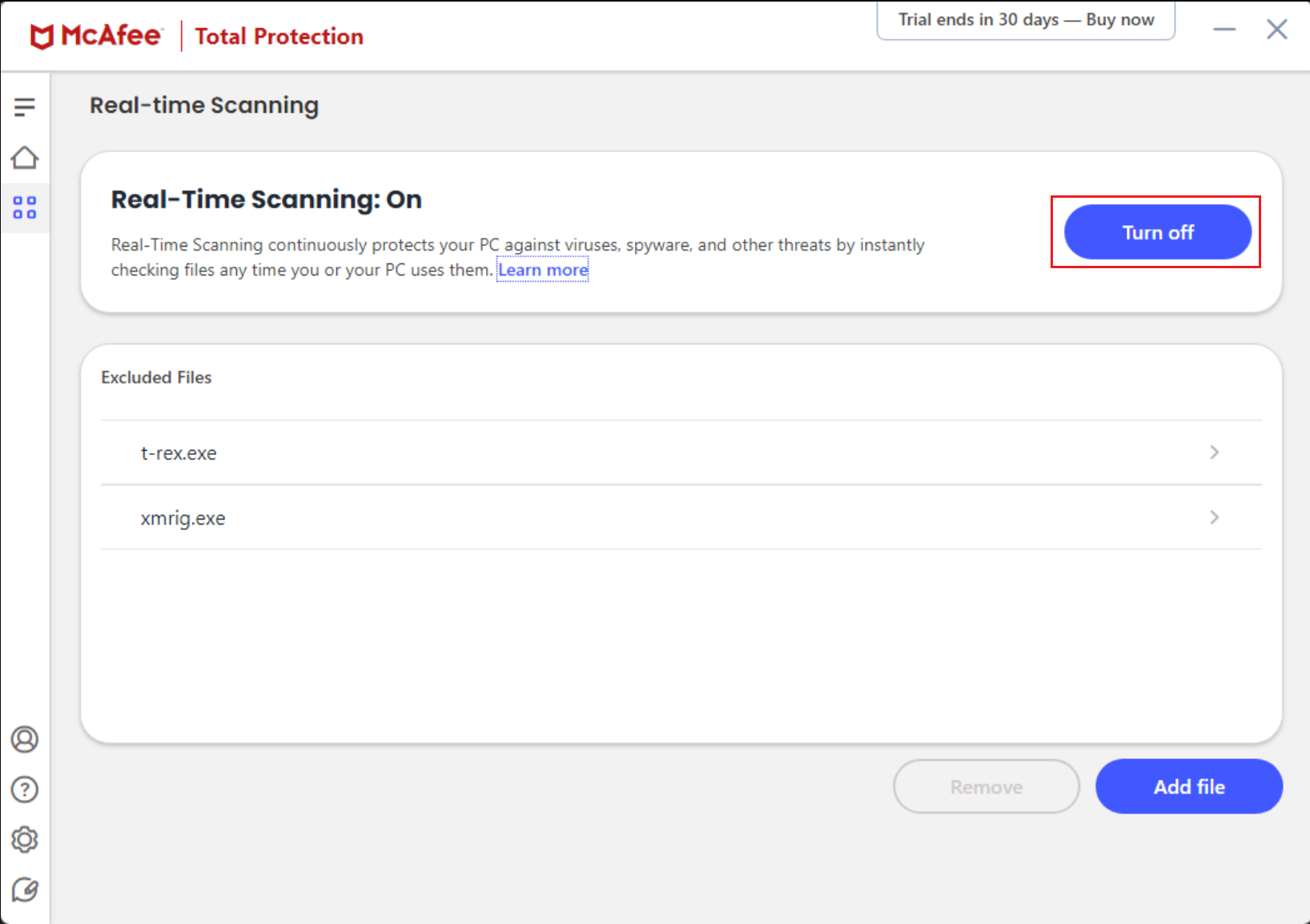
Because the real-time scanning will be deleting the miners before you are able to whitelist them, you will need to temporarily disable it. No need to worry though, you can turn it back on as soon as we are finished. You can disable it for only 15 minutes, or permanently until its been correctly whitelisted.
4. Start Salad again
After you have temporarily disabled real-time scanning, start Salad back up again, and wait until you're earning, then stop Salad, and return back to McAfee.
5. Re-enable Real-Time Scanning
Head back to the Real-Time Scanning page, and re-enable Real-Time Scanning.
6. Go back to the Real-Time Scanning page.
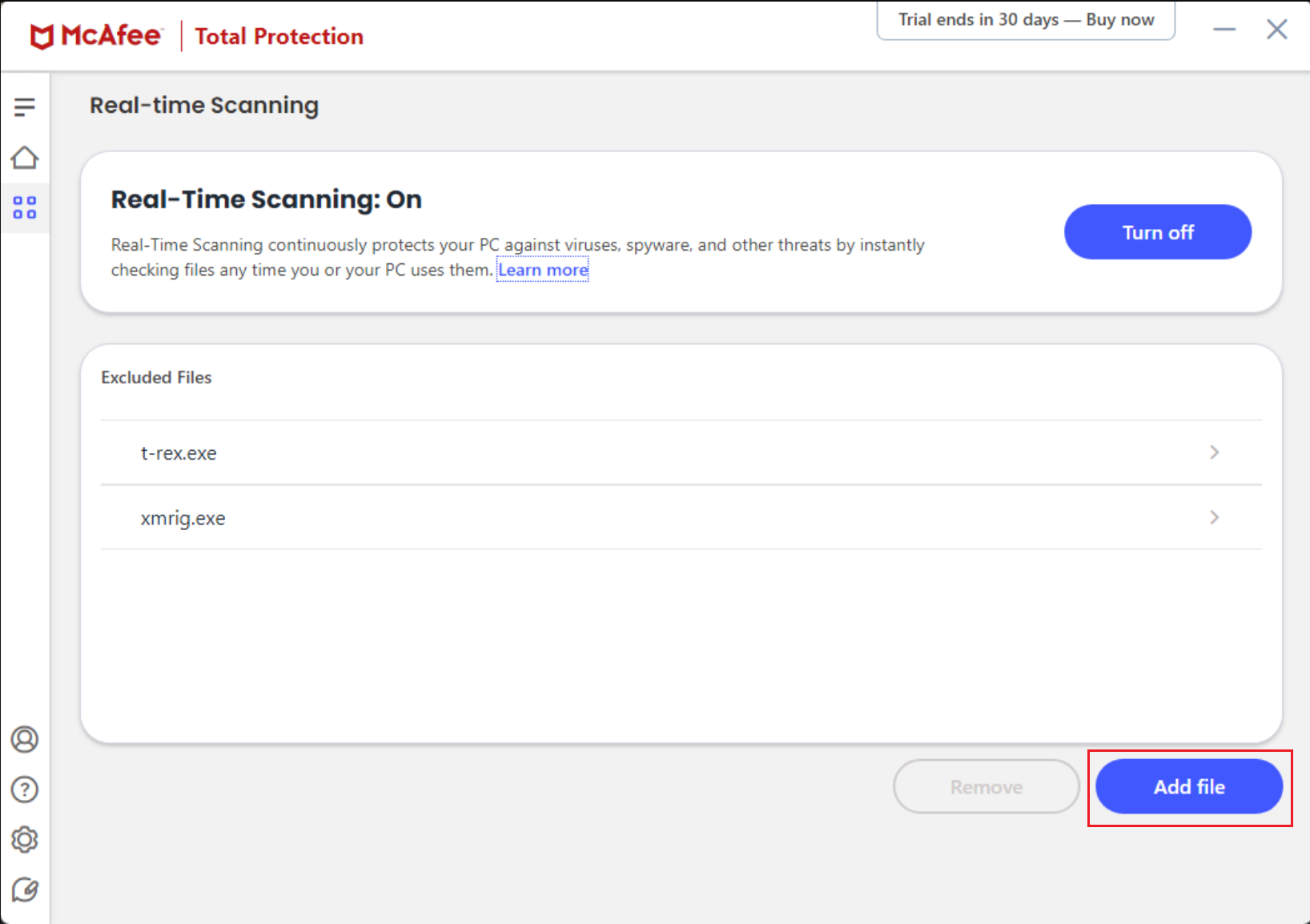
In this page, you now need to click the "Excluded Files" drop down, and select "Add File" as shown below.
7. Adding Salad as an Exclusion
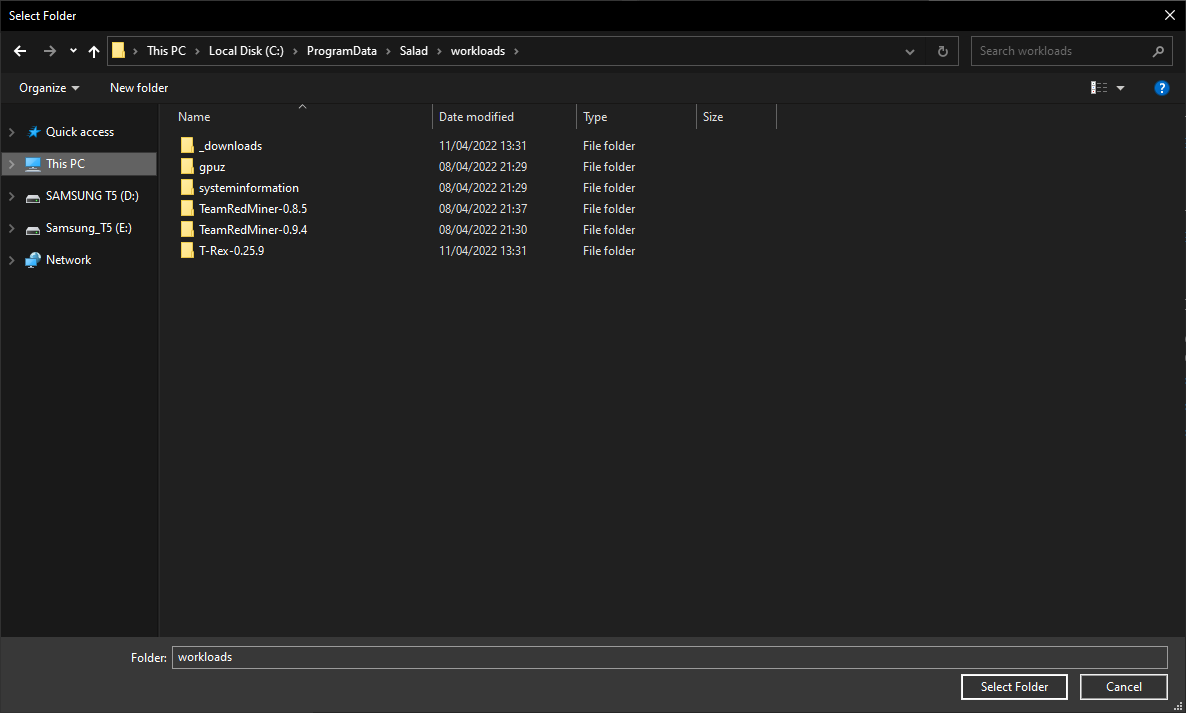
After clicking on "Add file", you'll want to paste "C:\ProgramData\Salad\workloads" into your filepath bar at the very top of the popped up File Explorer window. Inside this folder, you should see several more folders. These folders are where the miners are stored. Inside each of these folders, you will need to select the .exe file and whitelist them. As McAfee doesn't support folder exclusion you will need to add every file that has .exe as an exclusion. We recommend starting with the versions with the highest version numbers.
8. Click Add
Once you've found the .exe files and clicked it, hit 'Open', and it will bring you back to the main McAfee Exclusion whitelist page with your newly added exclusions. Repeat this process for all remaining files. You may need to also whitelist the other files within these folders if just the .exe files doesn't work
9. Run Salad
Let Salad run after setting up the whitelist by opening your Salad widget, and clicking the start button, and see if it works! If this issue persists, contact Salad Support. When new miner versions are released, you may need to follow these steps again to whitelist the new versions.
Last updated on