Salad logoSalad logo
Quickstart
AntivirusHow to Whitelist Salad in MalwarebytesHow to Whitelist Salad in Norton AntivirusHow to Whitelist Salad in Windows DefenderHow to Whitelist Salad in Avast AntivirusHow to Whitelist Salad in Bitdefender Antivirus PLUSHow to Whitelist Salad in McAfeeHow to Whitelist Salad in AVGHow to Whitelist Salad in AviraHow to Whitelist Salad in ESET-NODE32How to Whitelist Salad in KasperskyMy Antivirus isn't Listed HereWhitelisting Salad in Windows FirewallWhitelisting Salad in your Firewall
Discord
TroubleshootingAntivirus

Whitelisting Salad in Windows Firewall

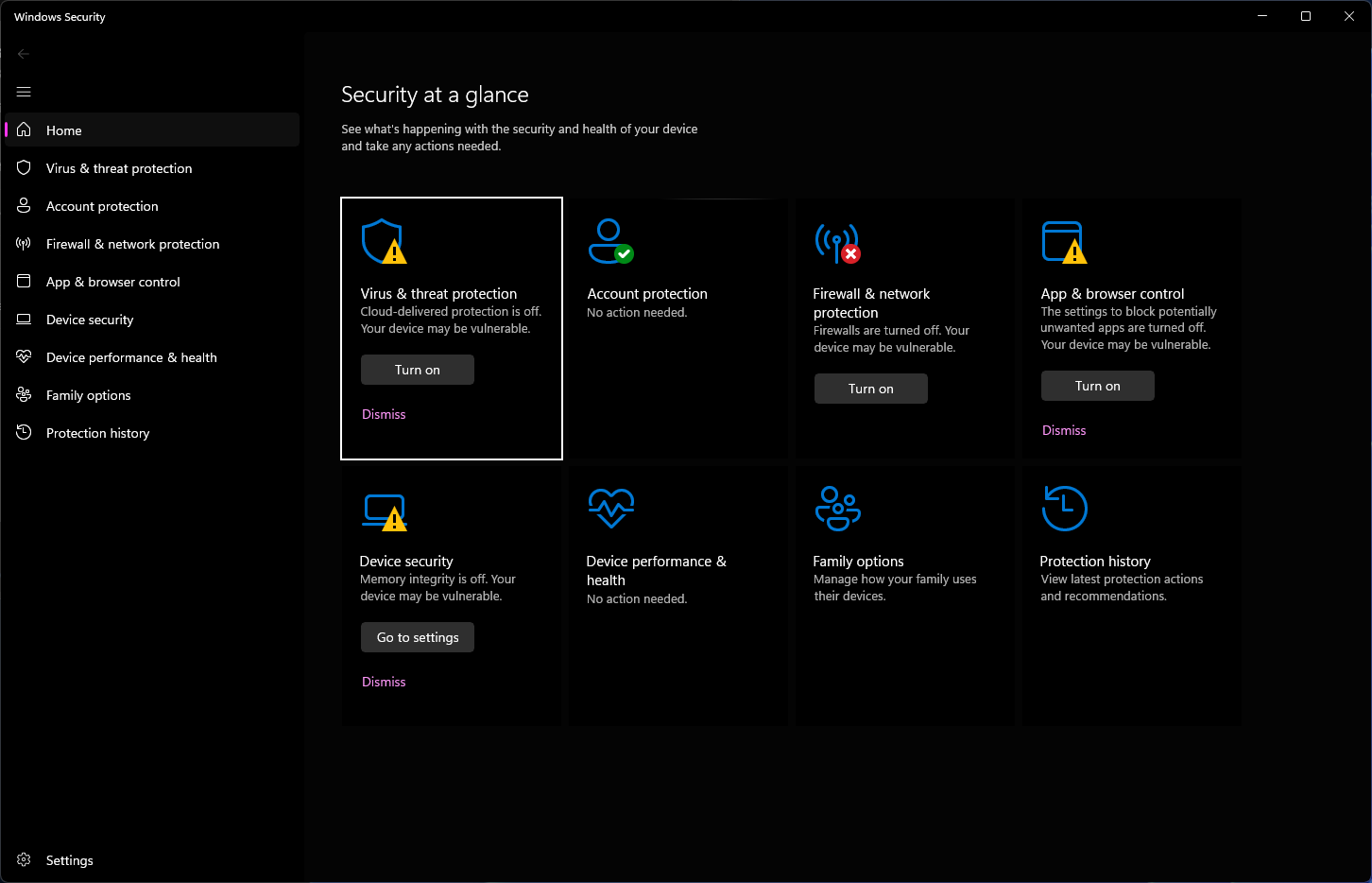
  1. Open Windows Security.

    Screenshot of windows security app

  2. Navigate to Firewall & network protection.
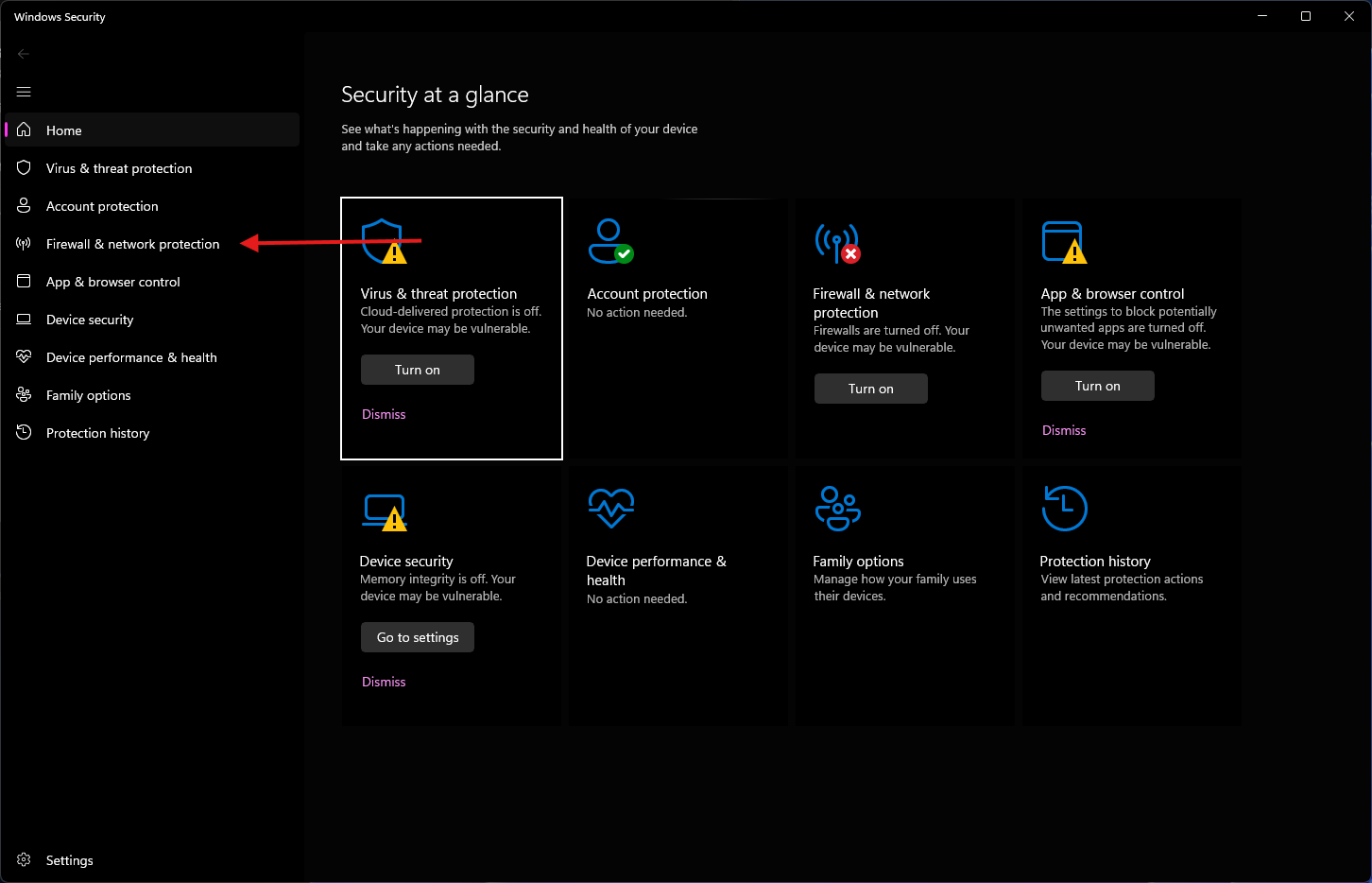
    Screenshot of firewall settings

  3. Scroll down to Allow an app through firewall.
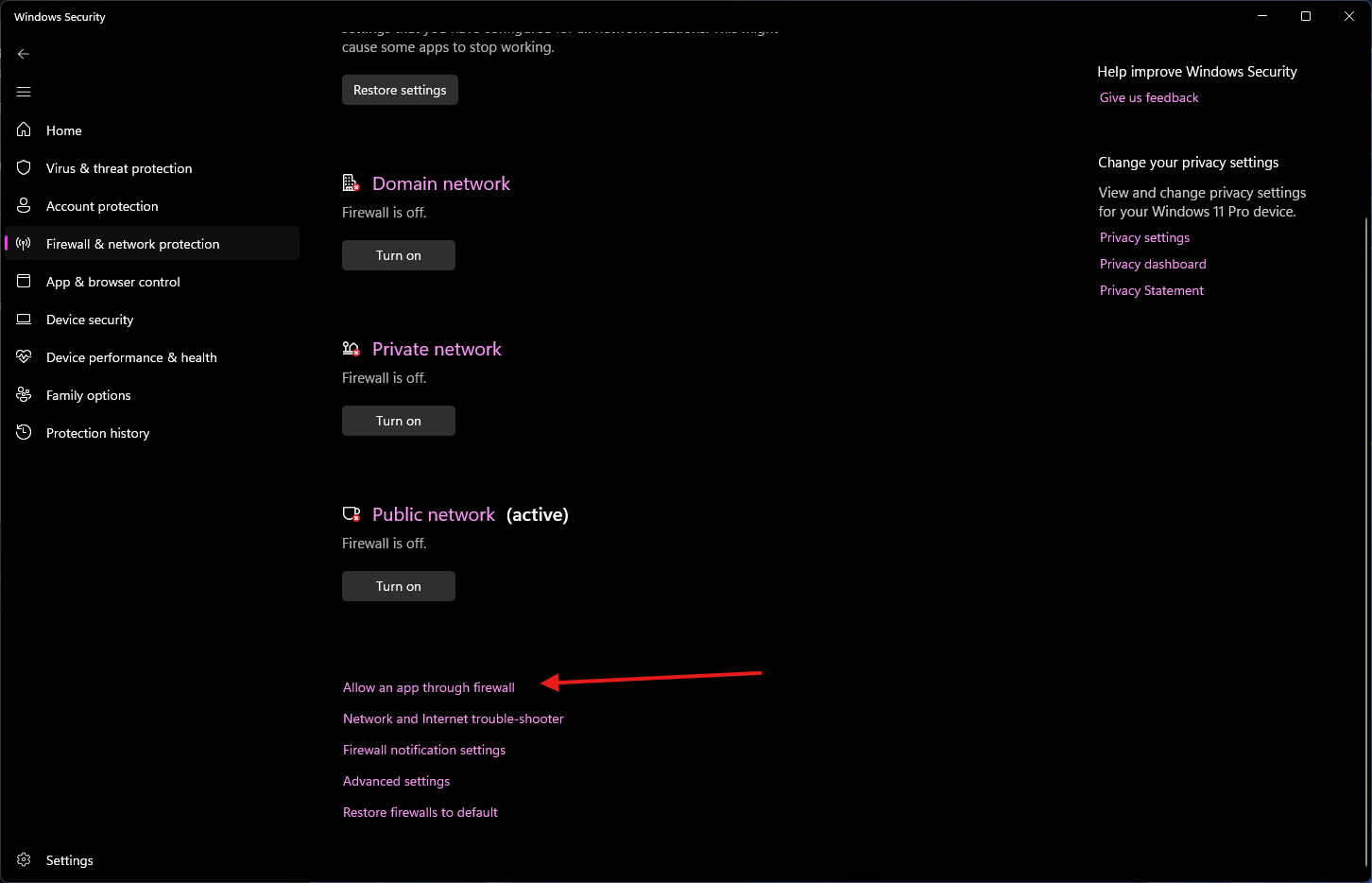
    Screenshot showing how to add an app in firewall

  4. Scroll down until you find the affected miner.
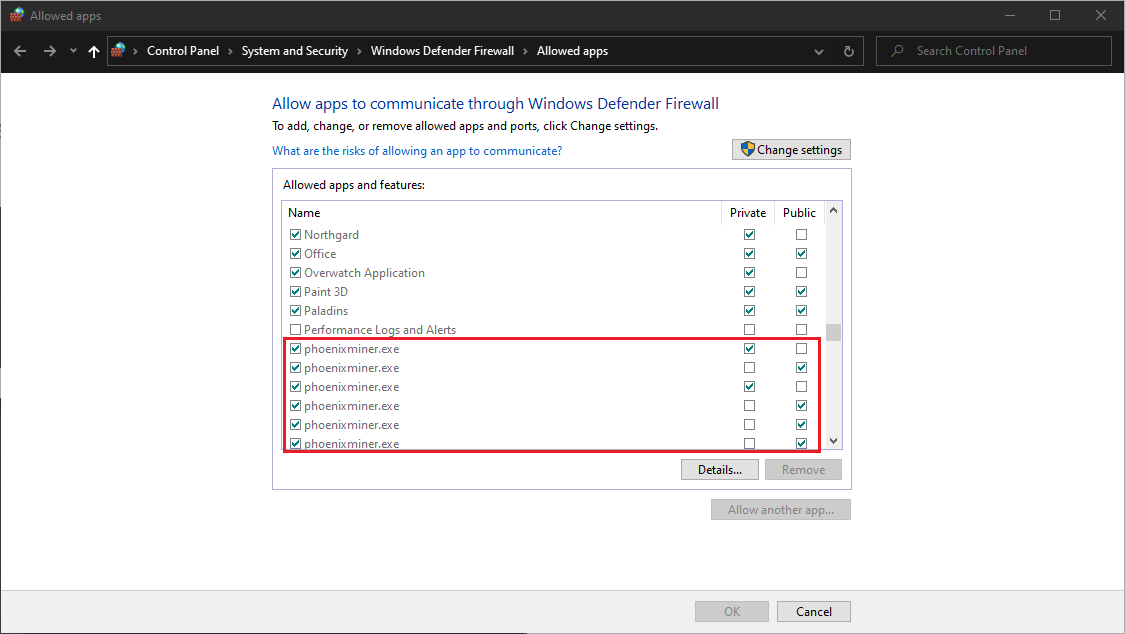
    screenshot of added miners

  5. Click Change settings at the top right, and click all the checkboxes on the right side, as well as left side, of the affected miner. Do the same for any further firewall-blocked affected miners, if you see the same item listed multiple times, make sure to allow all of them through. Then click OK.

Please note: If you are using another Firewall service, please consult their website or support for details on how to allow applications or services through your Firewall.

Edit on GitHub

Last updated on

My Antivirus isn't Listed Here

Previous Page

Whitelisting Salad in your Firewall

Next Page