

TroubleshootingAntivirus
How to Whitelist Salad in AVG
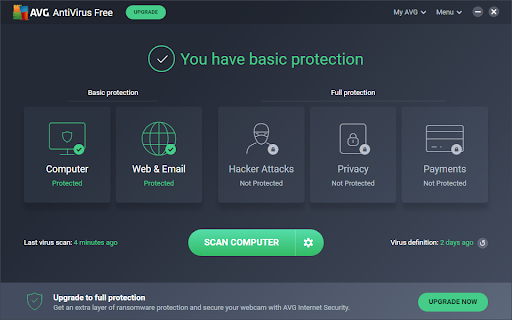
1. Open AVG
This will be the main screen you are presented within AVG and is your base of virus-fighting operations.
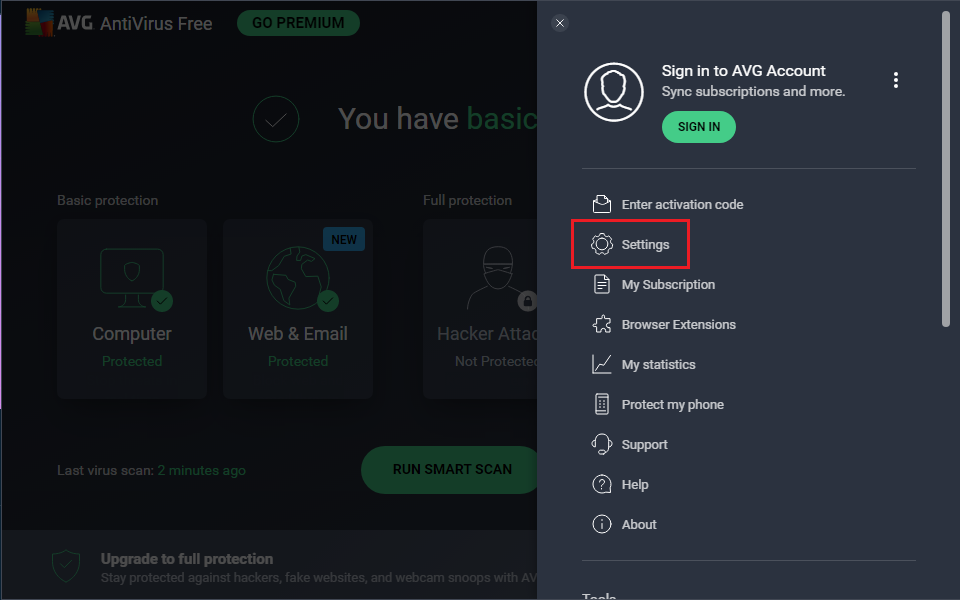
2. Navigate to Settings
You'll want to click on the menu button at the top right corner, and then click on the settings tab from the list.
3. Click Exceptions
You'll want to navigate to the Exceptions tab and click on "Add Exception", as shown
below.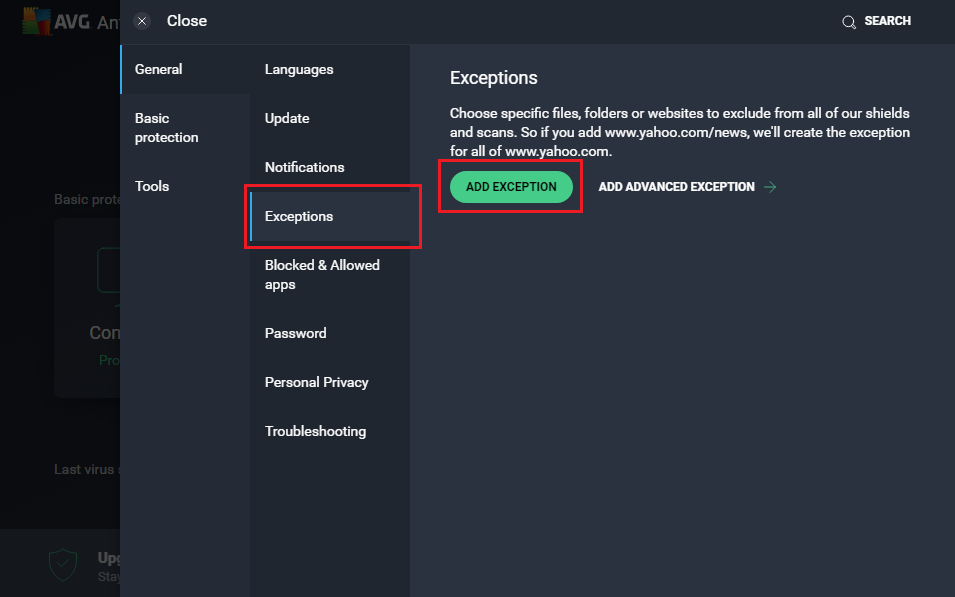
4. Add the whitelist
A dialogue box will appear once you have clicked 'Add Exception'. In the opened window, enter the path "C:\ProgramData\Salad\workloads", without the quotes.
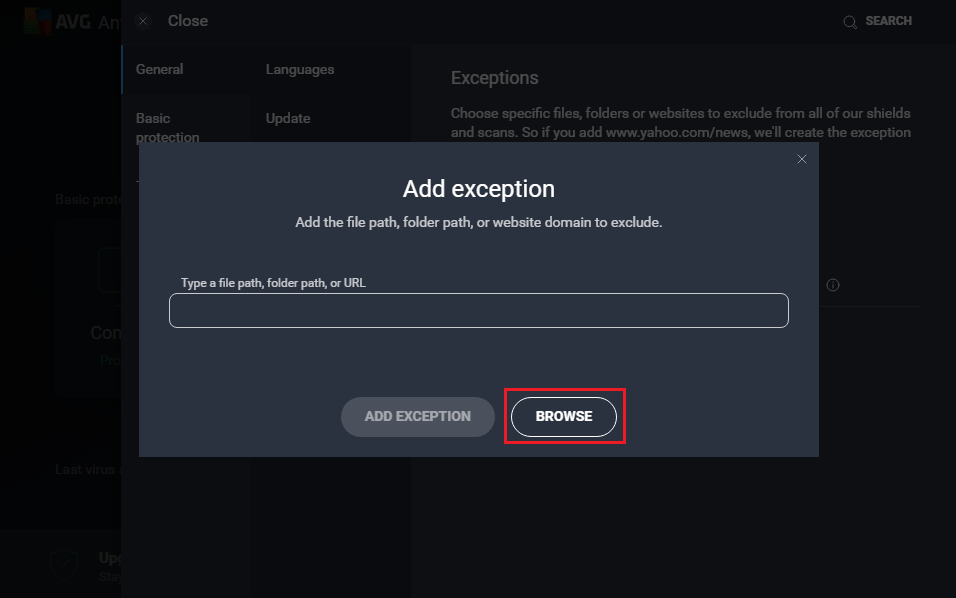
5. Click 'Add Exception'
Once you've entered the Salad folder click "ADD EXCEPTION", and it will bring you back to the main AVG "Exception" page with your newly added Exception.
6. Run Salad
**Open up your Salad widget and click the start button. If this issue persists, contact Salad Support.
Edit on GitHub
Last updated on