

How to Whitelist Salad in Bitdefender Antivirus PLUS
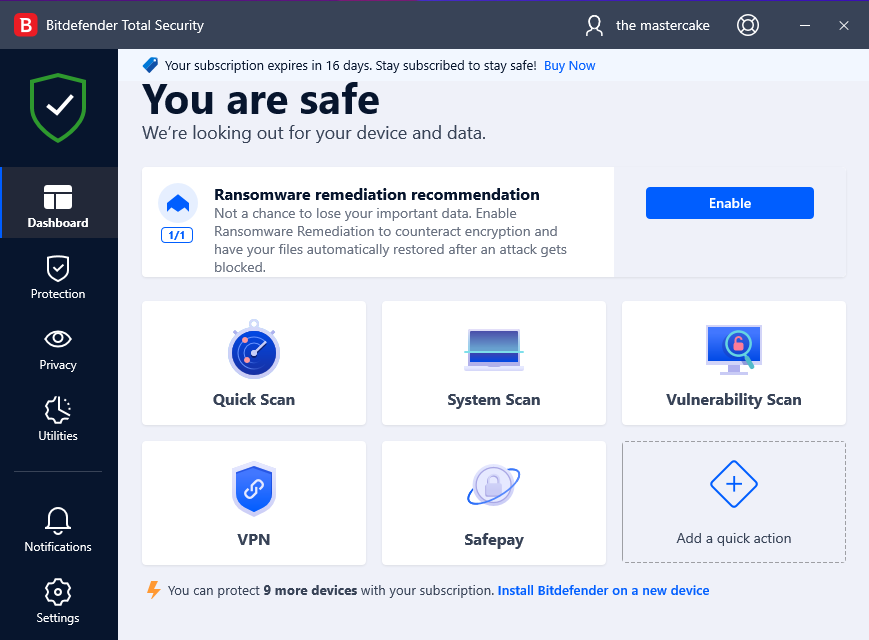
1. Open Bitdefender
This will be the main screen you are presented within Bitdefender, and is your base of virus-fighting operations.
2. Navigate to Protection
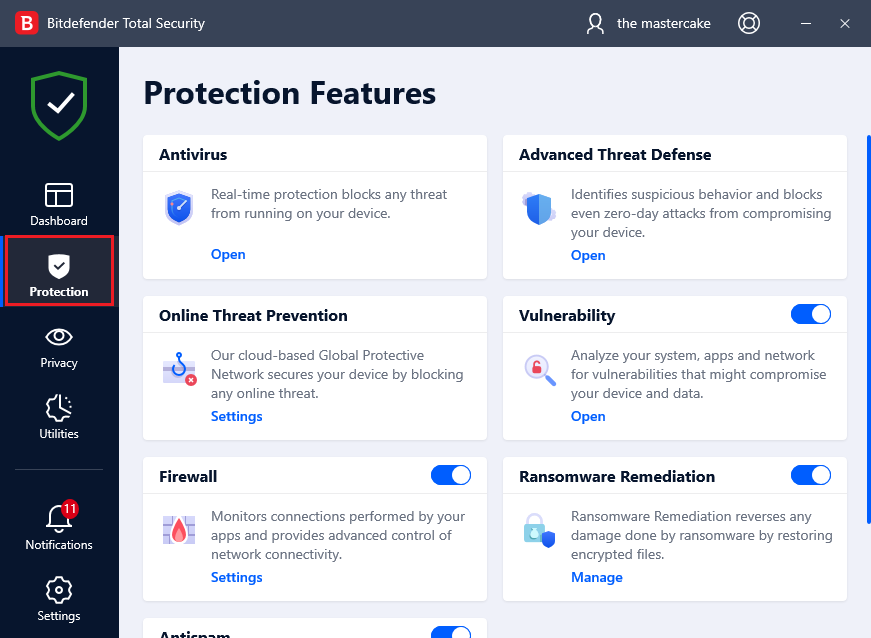
To access your antivirus related settings on Bitdefender, click the "Protection" button on the left of the main screen.
3. Navigate to your Antivirus settings
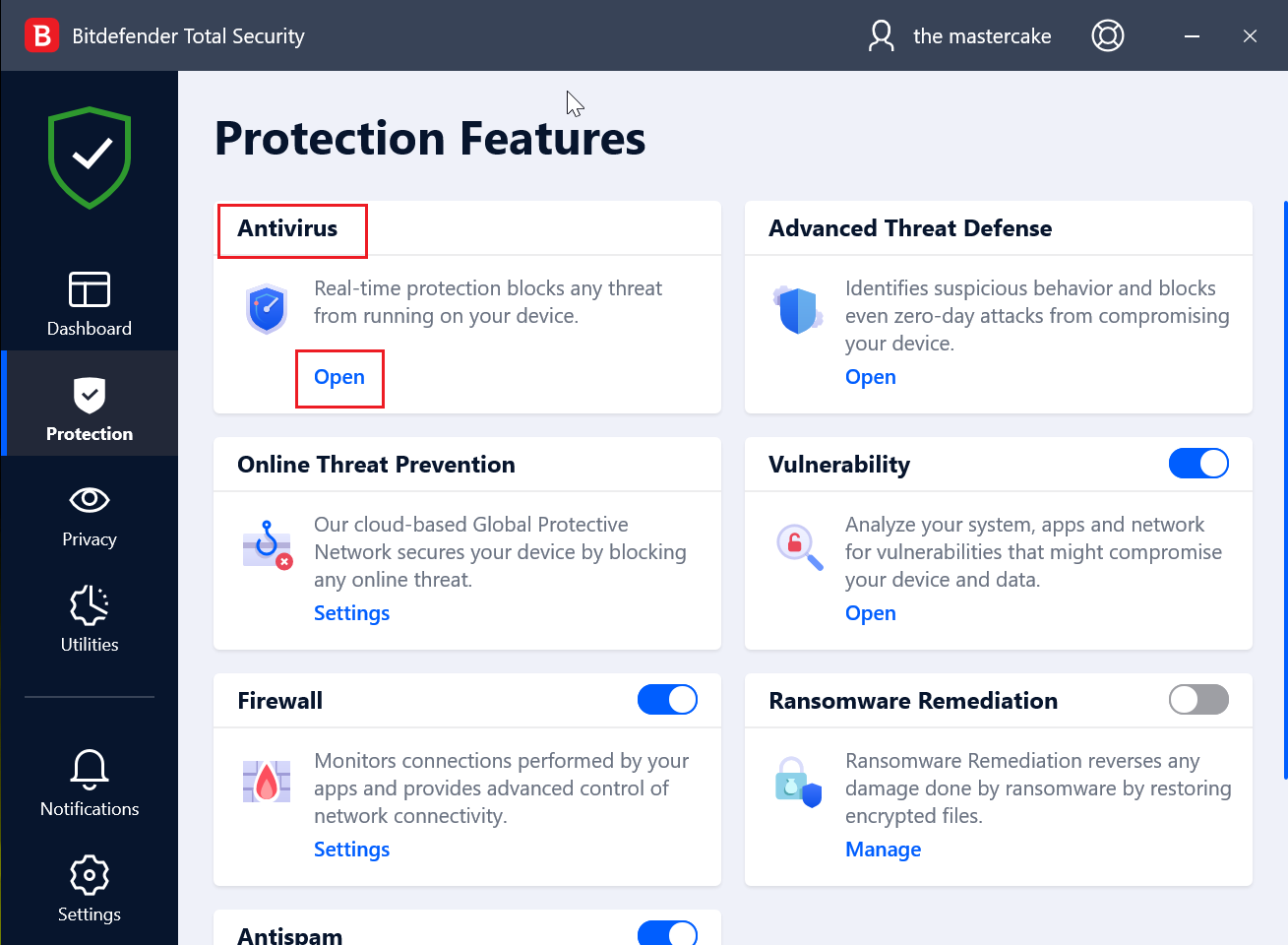
After clicking on the "Protection" button, click "Open" under "Antivirus".
4. Click on "Settings"
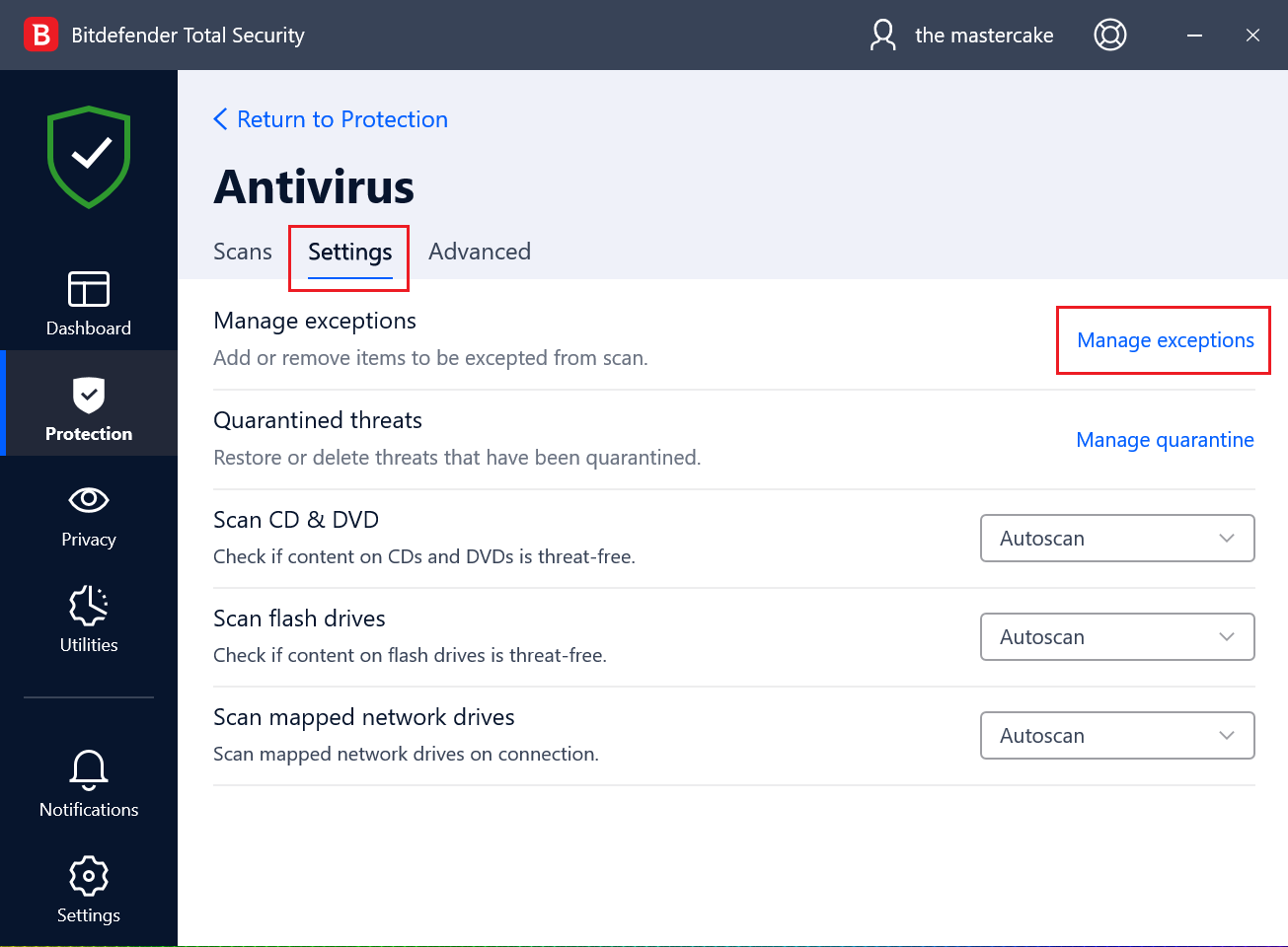
At the top, select the "Settings" tab, then click "Manage exceptions"
5. Click 'Add'
After you have entered the Exceptions tab, click "Add an Exception".
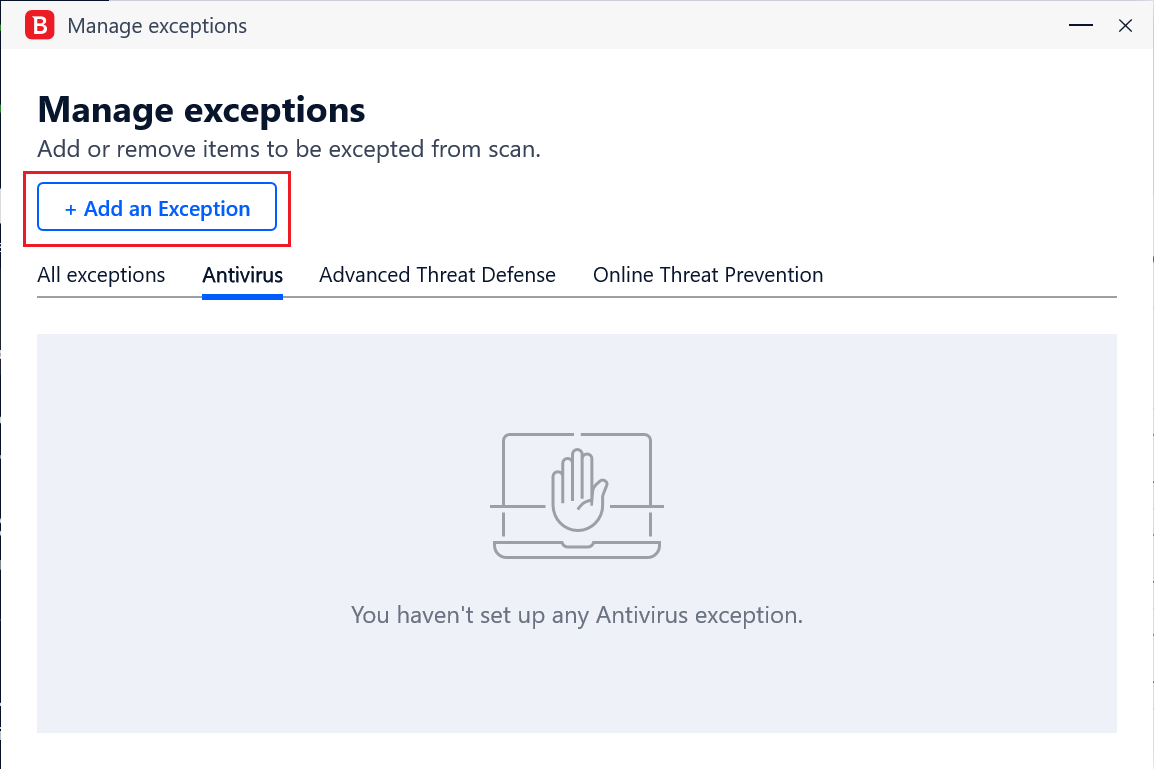
6. Adding Salad as an Exception
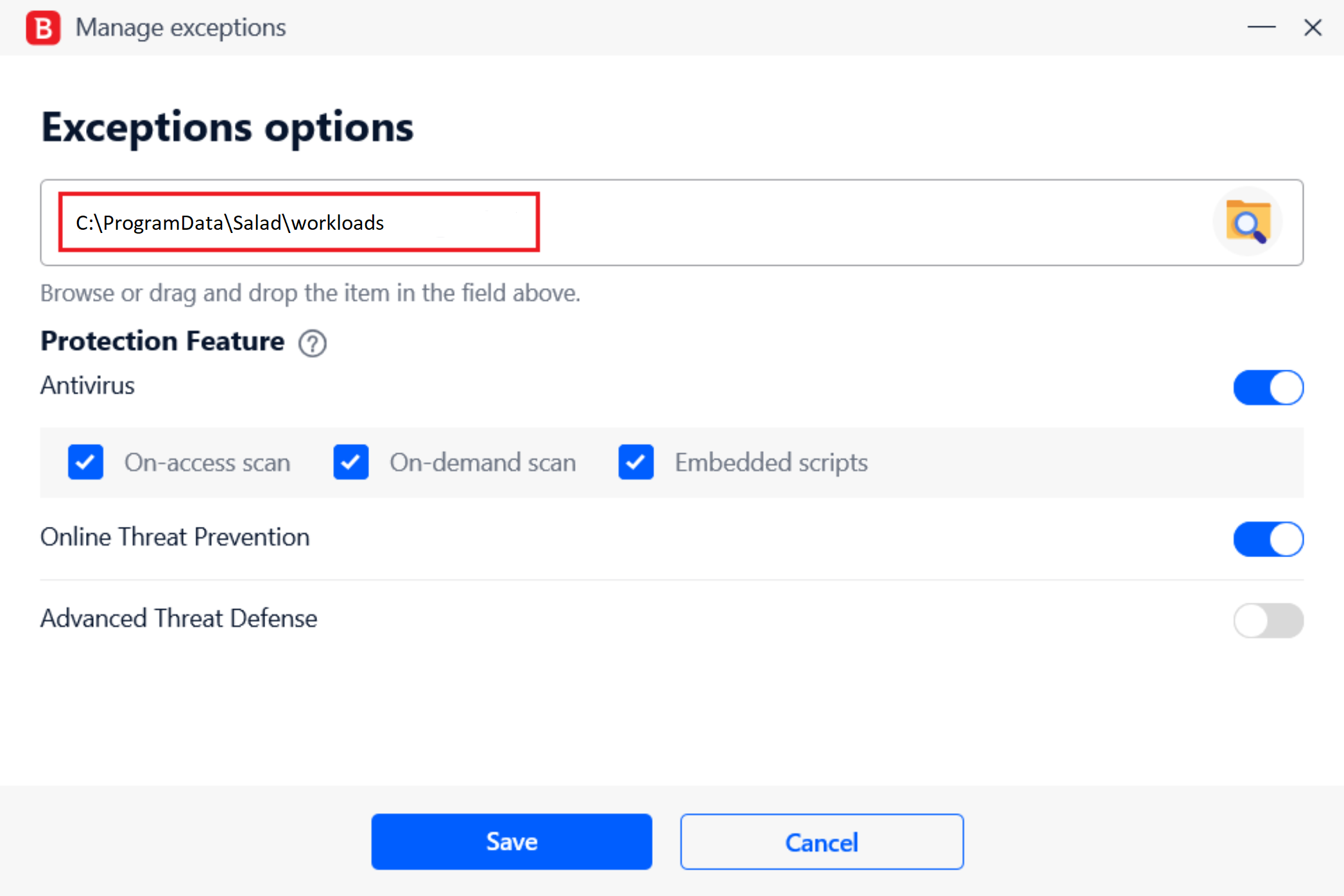
After you have clicked "Add an Exception" you will be shown a dialogue box. In that dialogue box you'll want to navigate to the Salad Miners folder and select it, the filepath for this is "C:\ProgramData\Salad\workloads" (without the quotations). Make sure to enable Antivirus protection for all 3 settings, as well as Online Threat Prevention.
7. Click Add
Once you've entered the Salad Miners folder, click "Save", and it will bring you back to the main Bitdefender Exception whitelist page with your newly added exception.
8. Navigate back to the "Protection" page.
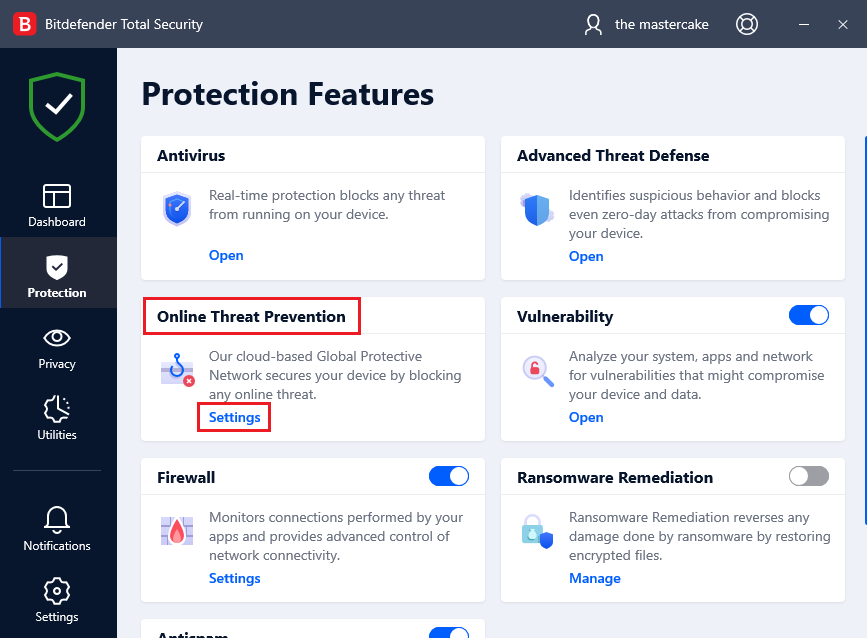
Head back to the "Protection" page, and this time head into the "Online Threat Prevention" tab.
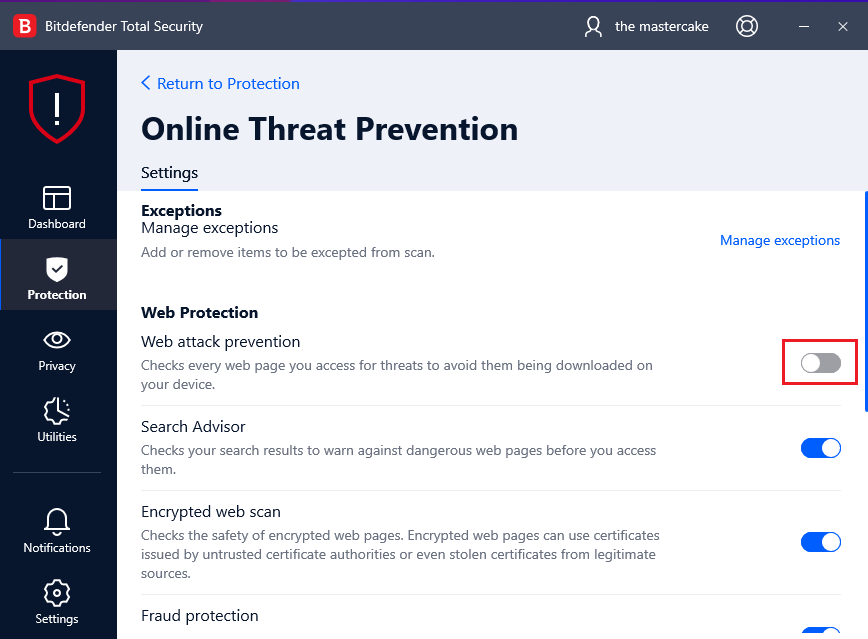
9. Temporarily disable "Web attack prevention"
Temporarily disable the "Web attack prevention" setting, don't worry, you can turn it back on once we're done.
10. Run Salad to download the miners
Start Salad, and wait for it to reach the Chopping state. Once the Chopping state is reached, you can stop Salad.
11. Head back to "Online Threat Prevention"
Go back the the page shown in the last few steps of the guide, and now you can re-enable your "Web attack prevention" setting, allowing it to continue protecting you.
12. Salad should now be whitelisted correctly
Open your Salad widget, and click the play button. If this issue persists, contact Salad Support.
Last updated on