

How to Whitelist Salad in Kaspersky
KASPERSKY HAS A KNOWN INCOMPATIBILITY ISSUE WITH SALAD, YOU MAY NEED TO FULLY DISABLE IF THE BELOW STEPS DO NOT RESOLVE THE ISSUE.
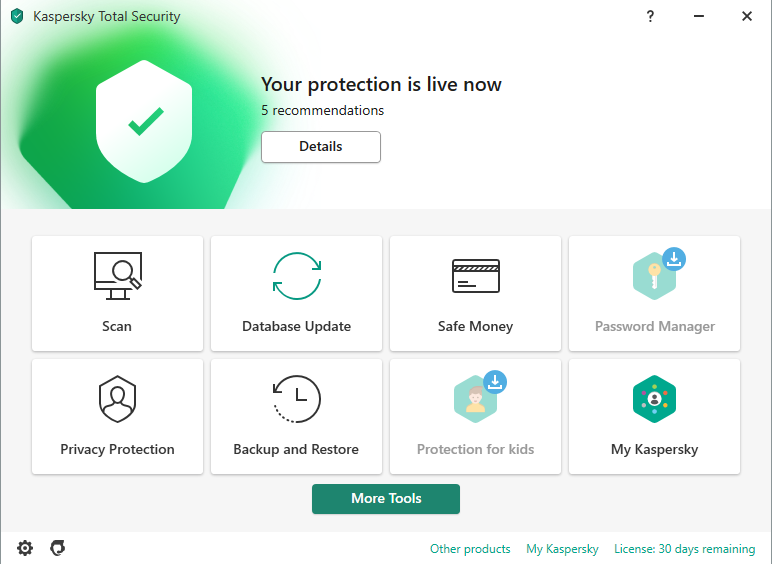
1. Open Kaspersky
This will be the main screen you are presented within Kaspersky, and is your base of virus-fighting operations.
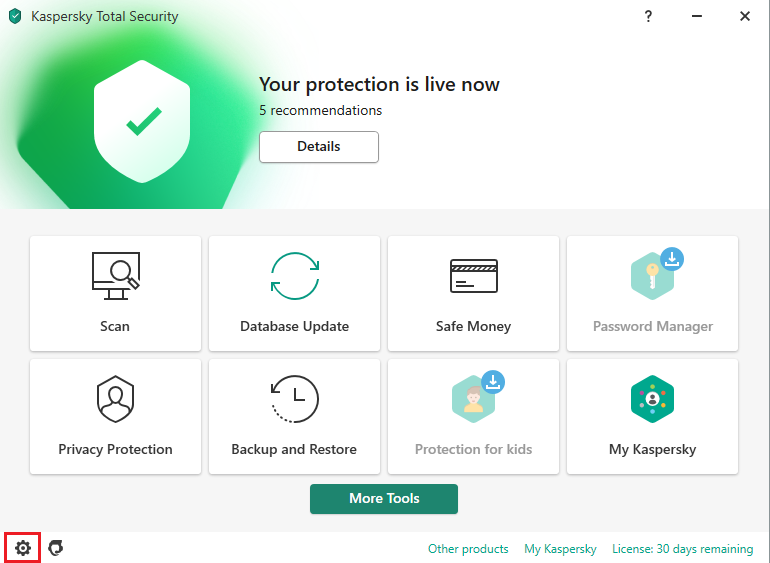
2. Navigate to Settings
Click the gear icon on the bottom left corner to access your settings.
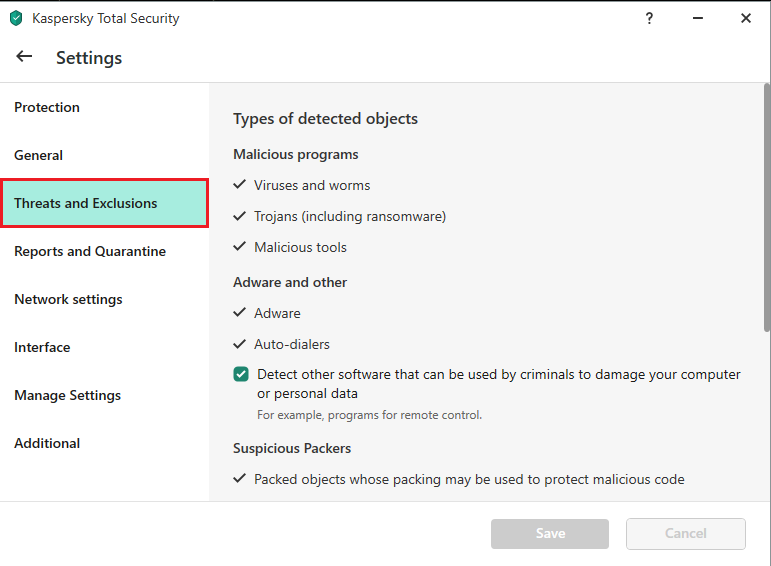
3. Click on Threats and Exclusions
Select the Threats and Exclusions tab from the settings page.
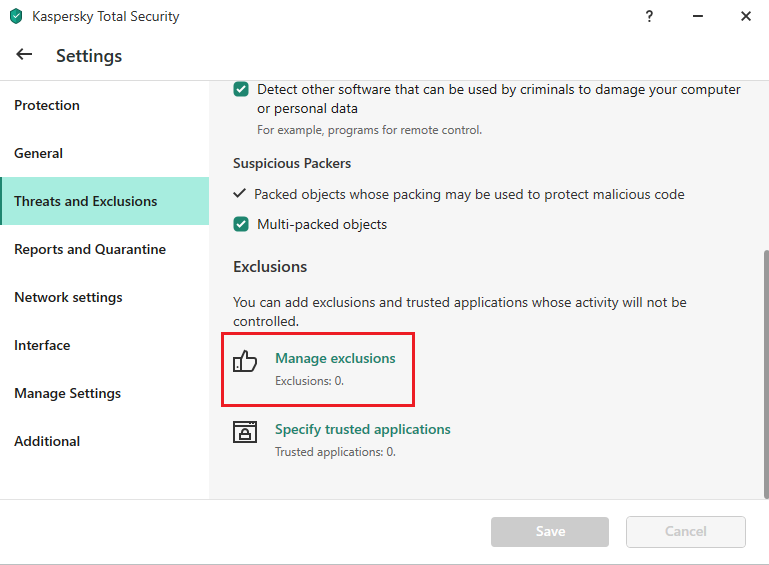
4. Select Manage Exclusions
After clicking "Threats and Exclusions", scroll down the page to the very bottom and select "Manage exclusions".
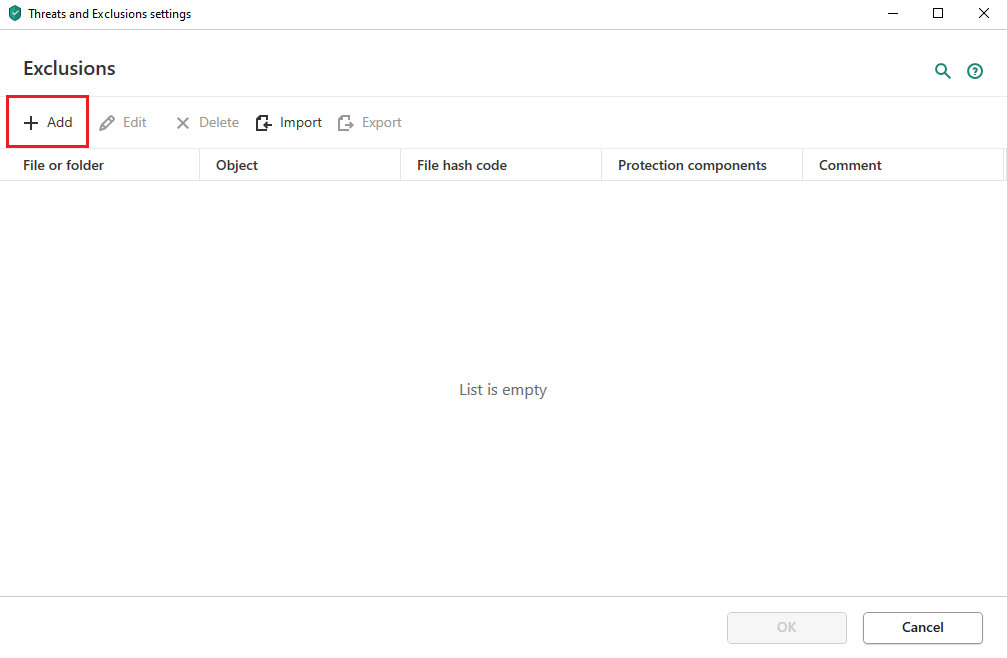
5. Click on 'Add'
After clicking "Manage exclusions" a box will show. Click "Add" as pictured below.
6. Adding Salad as Whitelist
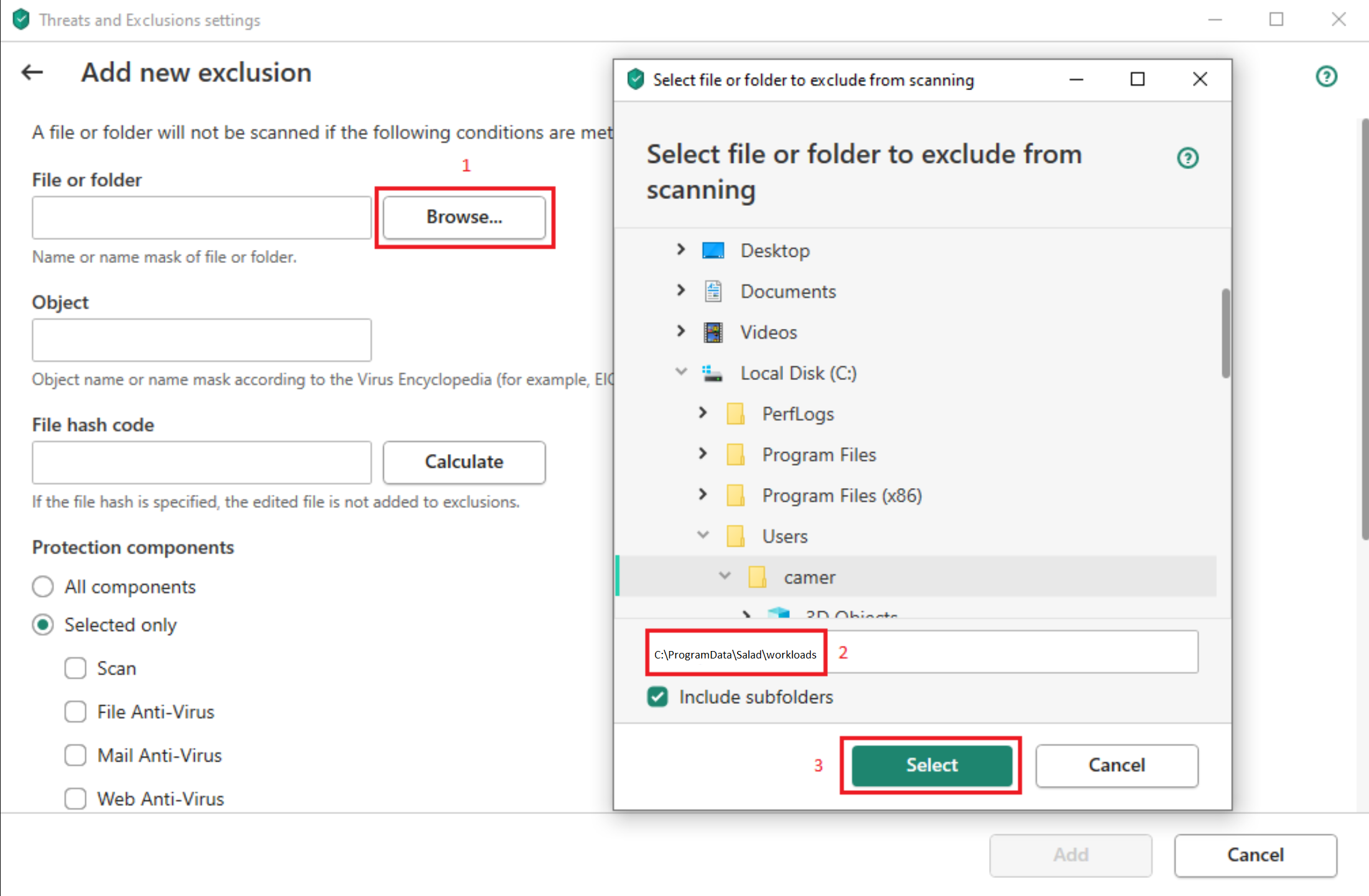
After clicking "Add", Select the "Browse..." button next to the "File or folder" option. Then enter the path "C:/programdata/salad/workloads", and click Select.
7. Select All components
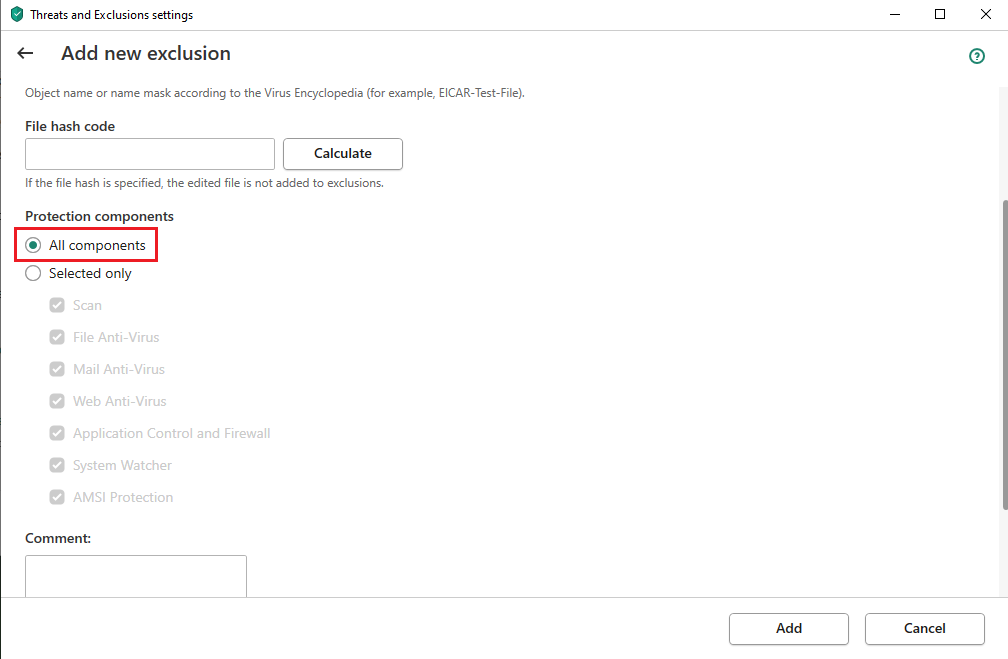
Once you have added the filepath, scroll down to the Protection Components section, and select All components as shown here.
8. Click OK
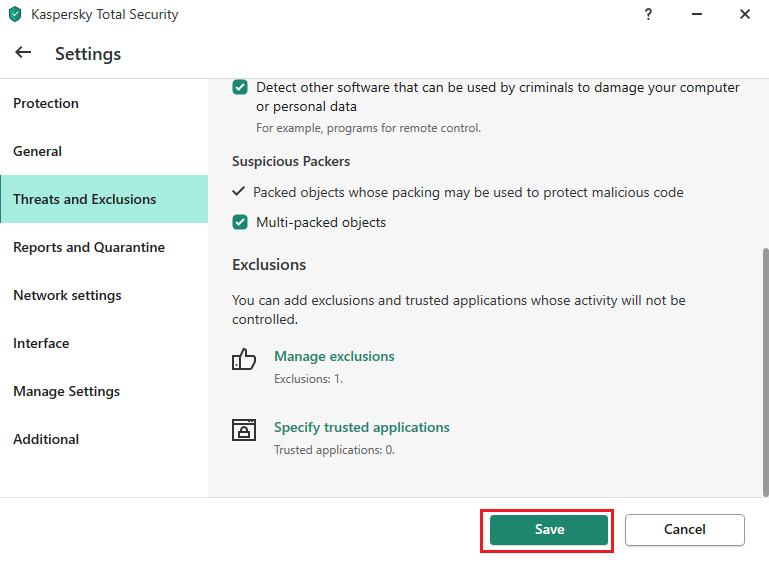
Click OK at the bottom of the page, then OK again, and then finally click "Save" on the Kaspersky window to save your whitelist.
9. Run Salad
Let Salad run for at least 30 minutes after setting up the whitelist by opening your Salad widget, and clicking the play button. If this issue persists, contact Salad Support.
Last updated on