

Failed to update container environment
Fix the "Failed to update container environment" / "WSL kernel updates are required" Degraded State notification, including the cases where wsl --update already says you're up to date.
What it means: Before it can create its container environment, the Salad app checks that the modern version of Windows Subsystem for Linux (WSL) is installed and then asks Windows to update it. This notification appears when that check fails or the update doesn't complete. Until it passes, no container jobs are offered.
Why it happens: Many times it isn't an update problem, but the app can't see WSL, even when WSL works fine for you, for one of these reasons - in order of how often we see them:
- Windows 10 is using its older, built-in WSL.
wsl --updatesays "the most recent version is already installed", but the separate WSL package that Salad needs was never installed. - The PC has no interactive desktop session: it's reached over Remote Desktop (RDP), or it rebooted and is sitting at the sign-in screen. The app can't run WSL commands without a desktop session.
- The Secondary Logon Windows service is disabled (some "debloat" tools do this).
- The WSL package is damaged ("The file cannot be accessed by the system").
- Windows Update or the Microsoft Store is blocked, so
wsl --updatecan't download anything.
What to do
Check which WSL you have
Open PowerShell (no admin needed) and run:
wsl --versionIf it prints a list of version numbers (WSL version, kernel version and so on), you have the modern WSL - skip to step 3. If it prints usage text, an error, or nothing useful, you have the old built-in version - do step 2.
Install the modern WSL package
Download the latest release's .x64.msi file from
Microsoft's WSL releases page, run it, and reboot. Your other Linux
distributions are kept; this replaces the engine underneath them. After the reboot, wsl --version shows version
numbers, and Salad creates its environment on its own within a few minutes of starting.
If wsl --update fails with a download error (often a 403 on company or school networks), the same .msi download is
the workaround, or run wsl --update --web-download.
Make sure Salad has a desktop session
Salad must run on a PC that is signed in to the Windows desktop. If you reach the PC remotely, use a mirroring tool (Parsec, AnyDesk, Chrome Remote Desktop) rather than Windows Remote Desktop - see Using remote desktop with Salad. If the PC runs unattended and reboots for updates, set it to sign in automatically so it doesn't stop at the lock screen.
Check the Secondary Logon service
Press Win + R, type services.msc, find Secondary Logon, and make sure its startup type is not Disabled (set
it to Manual). Salad uses it to launch its helper programs; when it's disabled you may also see "Problem detecting
hardware".
Repair a damaged WSL package
If wsl commands print "The file cannot be accessed by the system" or similar: open Settings > Apps > Installed
apps, find Windows Subsystem for Linux, open Advanced options and click Repair, then Reset if needed.
If the entry isn't there, install the .msi from step 2.
Run the update by hand and retry
In PowerShell as Administrator:
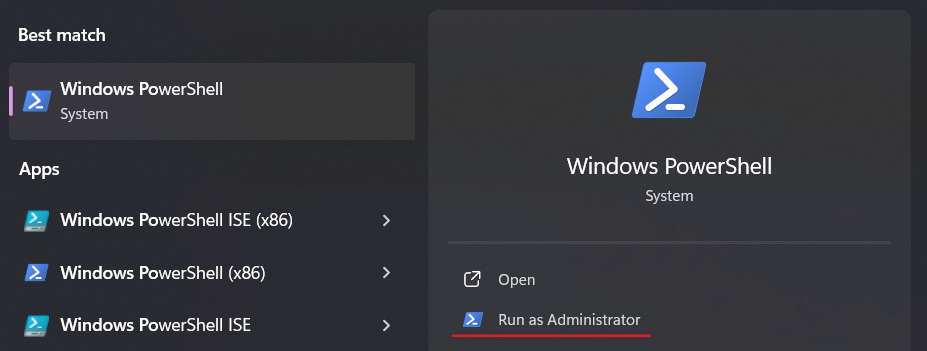
wsl --updatewsl --shutdownThen click Retry on the notification or restart Salad, and leave it alone for 15-20 minutes. If you use a Windows Update blocker, disable it for the update.
Don't try to create the environment yourself
wsl --install -d salad-enterprise-linux returns "distro not found": Salad's environment isn't in Microsoft's
catalogue. The app imports it automatically once the WSL check passes. Reinstalling Salad doesn't change the WSL check
either, so it's only worth trying after everything above.
Still stuck?
Send Salad Support the output of wsl --version and wsl -l -v, whether the PC is reached remotely, and
your logs folder zipped (how to find it).
Last updated on
Degraded State error codes
Reference table of every error code shown in Salad's Degraded State notifications, what each one means and where to fix it.
Failed to start container environment
Fix Degraded State errors -2 and -3, where Salad's Linux container environment can't be imported into WSL or its service won't start.