

Re-enable Powershell
Some Chefs may experience issues with Salad jobs and other subsystems if their PowerShell version is corrupted, or otherwise not working as expected. When running into issues with PowerShell or systems that rely on PowerShell, it is recommended to verify that it is correctly installed and functional before continuing.
Re-enable via Optional Features (Windows 10)
In order to access the Optional Features on your System, there are 2 main methods:
- Using the Windows search bar, type
Turn Windows features on or off, then press Enter - Press the Windows Key + R, then type
optionalfeatures.exe, then press Enter.
Once you're on the Optional Features window, follow the following steps:
- Scroll down and locate the "Windows PowerShell 2.0" entry.
- Uncheck the "Windows PowerShell 2.0" feature.
- Save and apply your changes.
- Restart your Windows 10 computer.
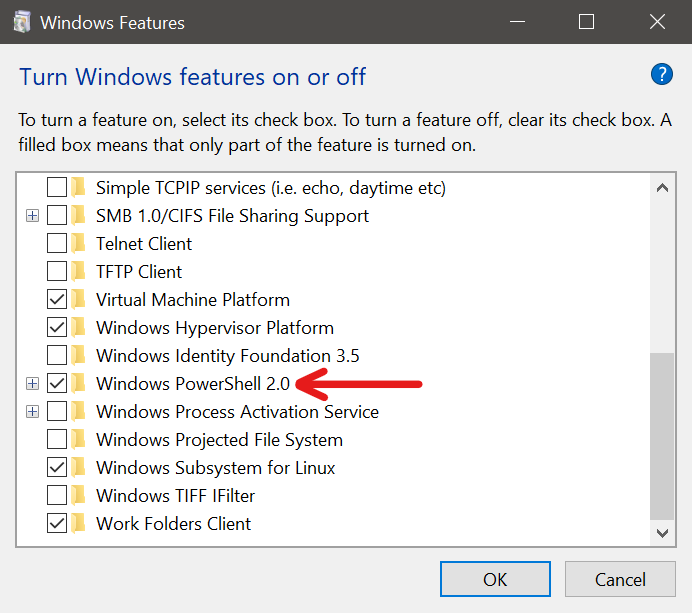
Afterwards, repeat the steps from above and re-enable the Windows PowerShell feature.
Use Command Prompt to run a System Check:
In cases where the above does not work, Windows provides a set of commands that can find corrupt files and tries to repair them automatically. Running these commands can help identify the issue and fix it automatically on your system.
-
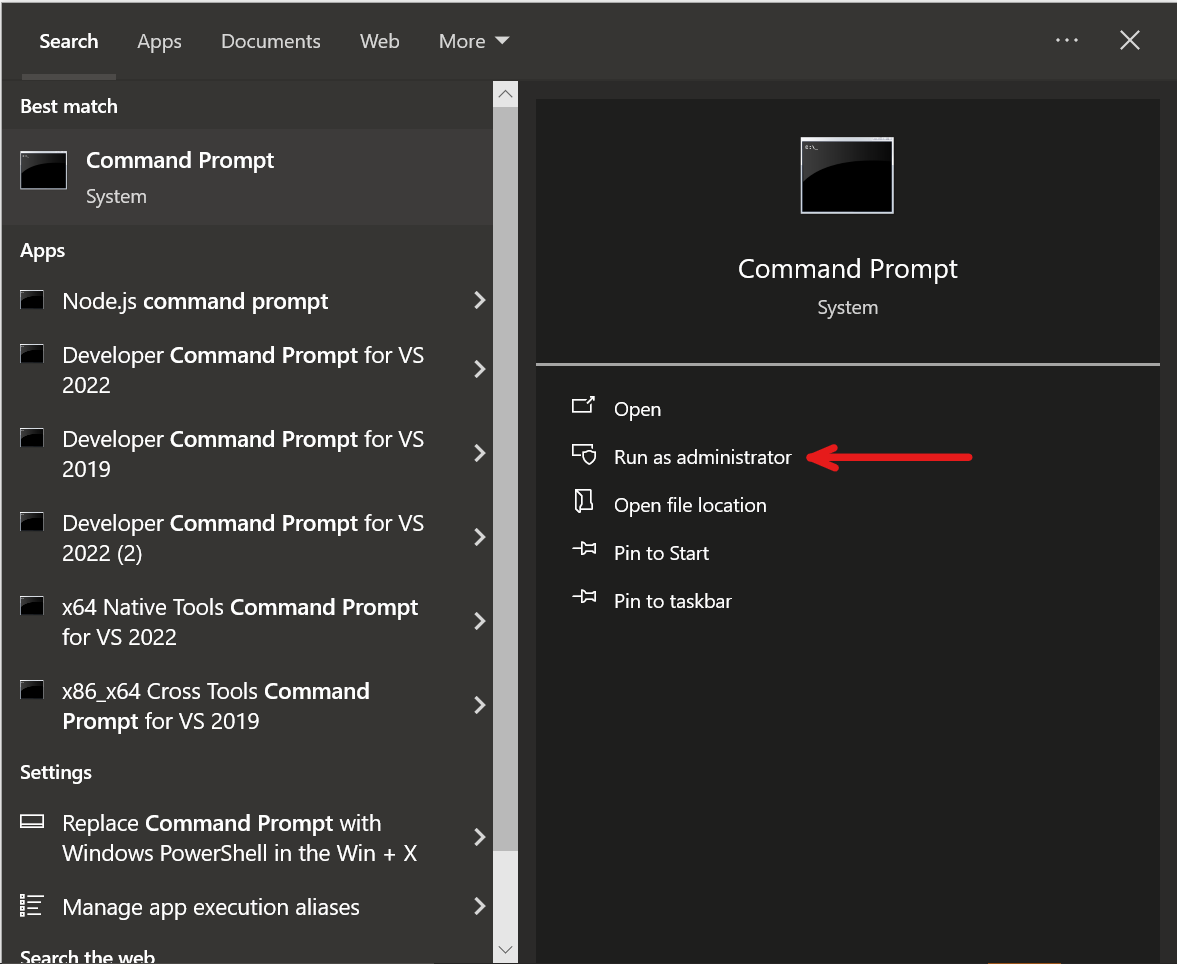
Open a command prompt as administrator:
-
Once open, type the following command and hit Enter:
sfc /scannow
Last updated on